
Configure CUPS Web Interface for SSL CentOS 6
Configure CUPS Web Interface for SSL CentOS 6
In this scenario, we already have CUPS configured on CentOS6, but we want to make it a bit more secure internally. Here’s the basic steps:
login, and su to root

from here cd to /etc/pki/tls/certs
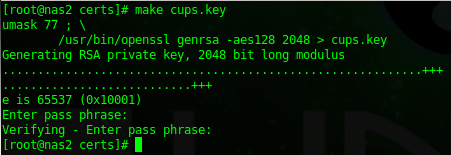
make a key for CUPS

enter the passphrase twice, and hit enter
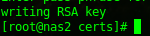
issue the following command, and enter the passphrase

you should see “Writing RSA Key”
now generate a CSR

fill in all questions asked honesly, issue the following command to self-sign the certificate

all set, now we just need to add the Certificate to the CUPS config, make a backup first…….

add the following 2 lines:

restart CUPS once completed

from here we should be able to access “https://cupsservername:631”
Done!
Hosted Linux Servers at www.zwiegnet.com/go
Related guides: Restore CUPS configuration to New Server CentOS 6 | Share CUPS UNIX printer with Windows IPP