
Install Nagios 4 on CentOS/RHEL6
Install Nagios 4 on CentOS/RHEL6

Nagios has worked hard to secure it’s seat as one of the world’s best enterprise monitoring systems. Nagios alerts about critical business processes such as certificate expiration, as well as supports multiple platforms including Windows and Linux.
Let’s get started, login, and su to root
first let’s install some pre-requisites
we also need to install the development tools:

modify your hosts file as appropriate

obviously modify this part

configure apache to start on startup, and start the service now

setup the nagios user account
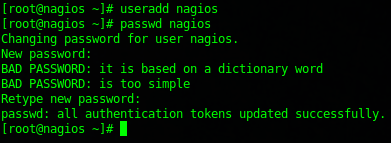
configure group permissions

Compile/Install Nagios:
Before proceeding, please review the document on Building a RPM From Source you will need to have a decent understanding before proceeding. We have saved you alot of time by building the SPEC files, all you have to do is compile the code.
you will also need to bulid the following rpms to be able to install the nagios-plugins, make an RPM from those as well
http://pkgs.repoforge.org/perl-Net-SNMP/perl-Net-SNMP-5.2.0-1.2.rf.src.rpm
http://pkgs.repoforge.org/perl-Crypt-DES/perl-Crypt-DES-2.05-3.2.rf.src.rpm
you may want to setup sudo for the nagios user to compile the packages.
After your packages have all been compiled, not then need to be installed on the server
change to the directory where you built your RPM’s, or download your RPM’s from your build server

install the Nagios RPM

install the perl-Crypt DES RPM

change to the noarch directory, and install the perl-Net-SNMP RPM

now we are finally able to install our nagios-plugins package

now if we try to start nagios, we get an error
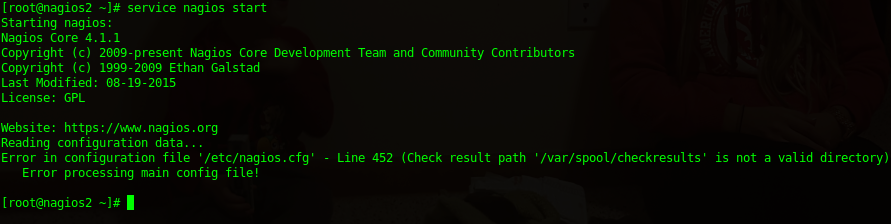
let’s create the directory, and set the necessary permissions

try to start nagios again

it will likely fail due to the following error:
nagios: Error: failed to access() /usr/bin/nagios: Permission denied
to correct the error chmod 775 /usr/bin/nagios

now is also a good time to enable startup
now we just need to setup apache:
edit the default apache configuration

update the config to contain a new document root

from here based on the /etc/httpd/conf.d/nagios.conf file, we need to add the nagiosadmin

restart apache and nagios one final time
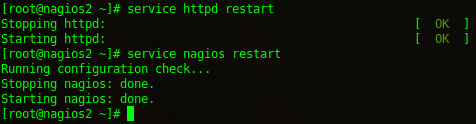
browse to http://hostname
enter your username/password that you just set
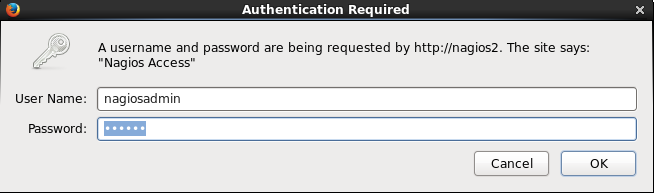
you should now be on the nagios home page.
You may see the following error:

tail /var/log/messages shows:
Nov 13 23:03:18 nagios2 nagios: Error: Unable to create temp file ‘/var/nagios.tmphqt4d2’ for writing status data: Permission denied
Nov 13 23:03:28 nagios2 nagios: Error: Unable to create temp file ‘/var/nagios.tmpr5AVEL’ for writing status data: Permission denied
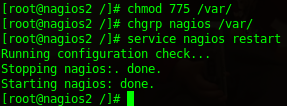
now refresh, you should see the following:
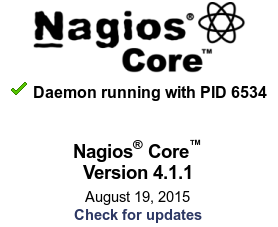
That’s It!
Hosted Linux Servers at www.zwiegnet.com/go
Related guides: Install Nagios on Linux | Build RPM From Source
1 Comment