
Restore CUPS configuration to New Server CentOS 6
Restore CUPS configuration to New Server CentOS 6
This guide covers backing up, and restoring CUPS to a new server. This should be a relatively short tutorial. Let’s get started, login to your new CUPS server where you will migrate all cups roles to. Let’s login

install the cups roles, plus other necessary packages

from here start CUPS and make sure it starts after a reboot

restore/overwrite the printers.conf and the cupsd.conf, as well as your .ppd files in the ppd folder with the original CUPS from your current production server (we used FTP to upload/overwrite files for this example).

restart cups so the new configs apply, as well as restart the server
login to your CUPS Web interface (ipaddress:631)
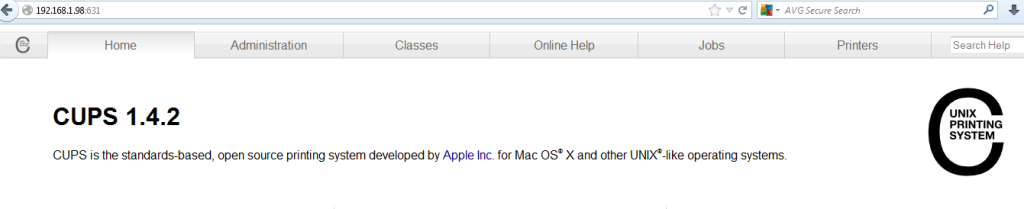
Browse to your printers tab, and make sure they are there

In this case we have one printer, go ahead and send a test page to the printer(s) to be sure all is working
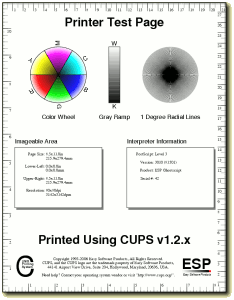
after that all should be set! Successful print from our brand new print server! (make sure to update dns, this is your new print server!)
That’s it!
Hosted Linux Servers at www.zwiegnet.com/go
Related guides: Configure CUPS Web Interface for SSL CentOS 6 | Enable/Disable CUPS Printer