
Install Nagios on Linux
Install Nagios on CentOS

Nagios has worked hard to secure it’s seat as one of the world’s best enterprise monitoring systems. Nagios alerts about critical business processes such as certificate expiration, as well as supports multiple platforms including Windows and Linux.
Let’s get started, login, and su to root
first let’s install some pre-requisites

we also need to install the development tools:

modify your hosts file as appropriate

obviously modify this part

configure apache to start on startup, and start the service now
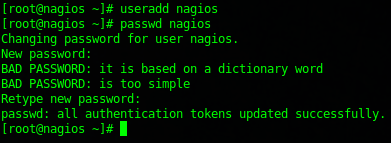
setup the nagios user account
configure group permissions
CONTINUE HERE FOR BETTER DIRECTIONS
** DO NOT USE THIS PROCEDURE, INSTALLING FROM SOURCE MAKES UPGRADES REALLY DIFFICULT, COMPILE THE SOURCE INTO AN RPM PACKAGE!!! **
Install Nagios:
It’s important to understand that Nagios must be installed from source, rather than with Yum, or a RPM/DEB package.
cd to the /opt directory (note that this is where ALL 3rd party software is supposed to be installed)

wget the latest stable source from the nagios website
http://www.nagios.org/download/core

now we’re going to extract the source tar ball from it’s compressed zip state

change to the nagios directory once extracted

star the compiling process by configuring the make files
you should see lots of this:
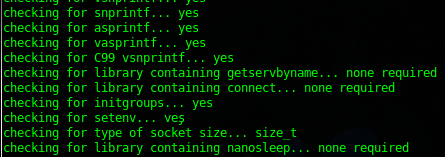
issue the make all command

now issue a make install

now do a make install-init to install a startup script

now a make install-config to install nagios config files

now do a make install with command mode

now we need to tell nagios to use apache
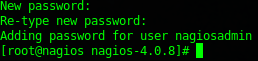
now we need to configure apache authentication

great, now our nagiosadmin account can login via apache authentication
restart apache, as with any web change

now we need to install and configure nagios plugins (from source, wahoo!)

extract the nagios plugins from the compressed tar file
change to the nagios plugin directory

configure the plugins

issue the make command
now install with make install

now all we need to do is start nagios, pretty simple right?

verify that there are no warnings/errors
now start the service

also remember to set it to start on startup
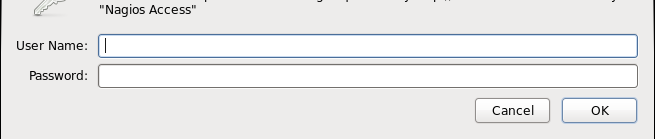
now go to your browser, and enter
http://ipaddress/nagios
you will be prompted for a username/password, this is the nagiosadmin password from earlier
Bam, you are now logged into Nagios!
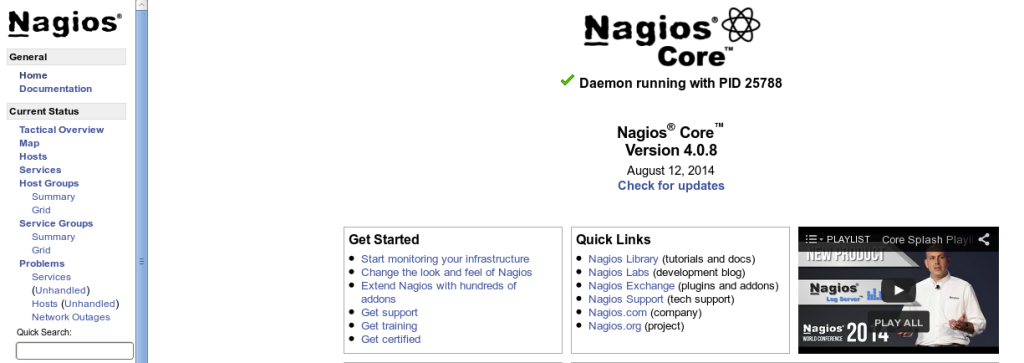
That’s it! You have successfully installed Nagios!
Related guides: Install Nagios 4 on CentOS/RHEL6 | Configure SNMP on CentOS
1 Comment