
Moving Windows NTP Server
Moving Windows NTP Server
Usually around the time you Migrate/Upgrade Active Directory you realize you forgot something… Where is the Time Synchronization Coming From? OOPS! Here’s the Basic Process to Move it from one server to another.
On the Original NTP Server:
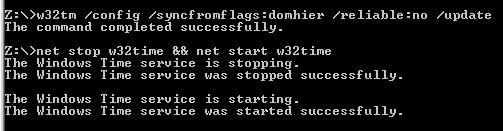
This stops the service, and says to no longer use this time source.
From here go to the new NTP server
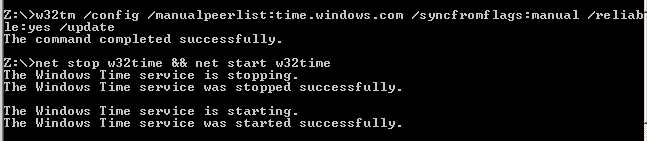
this syncs, and sets the server as the “reliable” for the network
now how do we test this?
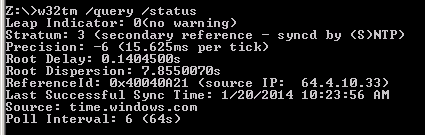
on our primary server, we can see was last synced with time.windows.com. Great, one step left, how can we verify other servers/clients are syncing with this server?
Same command, different server, other than the master:
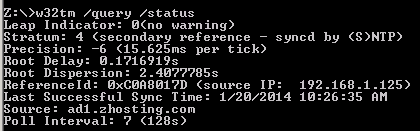
as you can see the source is “ad1.zhosting.com” this is our new time provider!
Perfect! You have successfully moved NTP to a new server!
Hosted Linux Servers at www.zwiegnet.com/go
Related guides: Configure NTP Server CentOS/Redhat/Oracle Linux | Find out what domain controller you are authenticating with
1 Comment