
When logons are slow, Group Policy looks stale or an account keeps locking out, the first question is often: which domain controller did this computer actually talk to? Here’s a simple one, followed by a few commands that give a more complete answer.
Prerequisites
- A Windows computer joined to an Active Directory domain (Windows 7 and later, Windows Server 2008 R2 and later; the commands are unchanged on Windows 10/11 and Server 2016-2025).
- You are signed in with a domain account. No admin rights are needed for
set logonserver,klistorgpresult /r.
1. Check the LOGONSERVER variable
Go to a command prompt and enter the following command:
set logonserver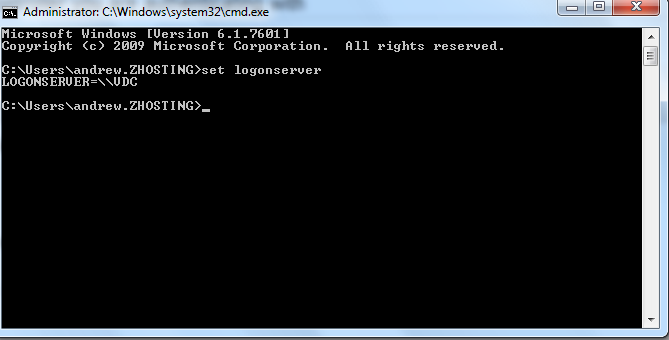
As you can see, I am logging on and authenticating with the server “VDC”. Windows sets LOGONSERVER when you sign in, to the domain controller that validated your interactive logon. In PowerShell the same value is in $env:LOGONSERVER.
Two things to know about it:
- It is fixed at sign-in time and is not updated if the computer later switches to another DC.
- If it shows your own computer name, you signed in with a local account or with cached credentials because no DC could be reached.
2. Ask the DC locator with nltest
nltest shows which DC the Netlogon service is using right now, which is the one the computer uses for Group Policy, password changes and its own secure channel:
nltest /dsgetdc:yourdomain.local
nltest /sc_query:yourdomain.local
/dsgetdc prints the DC name, its address and site, plus flags such as GC (global catalog) and PDC. /sc_query shows the DC holding the computer’s secure channel. To make the computer look for a DC again, for example after you have taken one down, add /force:
nltest /dsgetdc:yourdomain.local /force3. Confirm with Kerberos and Group Policy
klist lists your Kerberos tickets. On Windows 8 / Server 2012 and later each ticket shows a Kdc Called line naming the DC that issued it:
klistgpresult /r shows where Group Policy came from in the “Group Policy was applied from” line, under both the computer and user sections:
gpresult /r4. PowerShell with the Active Directory module
If RSAT’s Active Directory module is installed, this asks the DC locator for a domain controller and returns its name, site and IP address:
Get-ADDomainController -DiscoverTroubleshooting
- The DC is in another site: if
nltest /dsgetdckeeps returning a DC in a remote site, check that the client’s subnet is defined in Active Directory Sites and Services and linked to the right site. - LOGONSERVER shows the local computer: the logon used cached credentials. Check DNS on the client (it must point at AD DNS servers) and that a DC is reachable.
- Lockouts from an unknown source: once you know which DCs handle the account, see Investigate Account Lockouts in Active Directory.
- Adding a DC to spread the load: see Install New Domain Controller.
Related guides: Investigate Account Lockouts in Active Directory | join computer to domain command line