
i see this about once a week in the forums, “how do i migrate from 2003 to 2008” here’s the answer, there’s a lot of work, but will pay off.
in this example there are two servers, a 2003DC (192.168.1.241)holding the FSMO roles, and a 2008 server (192.168.1.242) the 2008 has already been joined to the domain, it just needs to take over active directory.
first thing you want to do if you have multiple domain controllers, find out what server is holding the FSMO Roles (domain operations master server)
netdom query fsmo
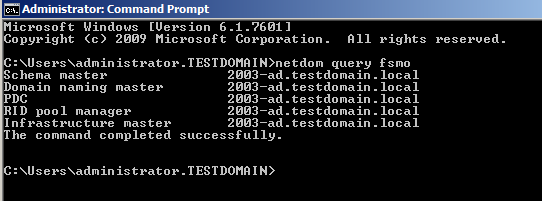
as you can see 2003-ad.testdomain.local holds all the FSMO roles, that is where we will be transferring roles from.
Insert the 2008R2 CD into the 2003 Domain Controller, Browse to D:/support/adprep, have a command window open
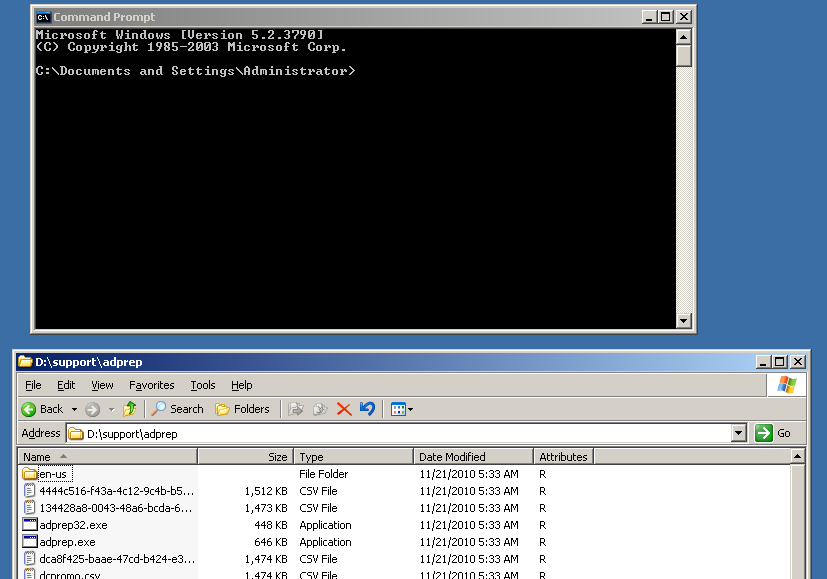
Insert the 2008R2 CD into the 2003 Domain Controller, Browse to D:/support/adprep, have a command window open

as you can see there is the adprep32.exe, and the adprep.exe, if the primary system you are on (holding FMSO) is a 32 bit machine, then use adprep32, and drag the file to the command line
This process allows your active directory schema to be upgraded, append /forestprep to the end of the command
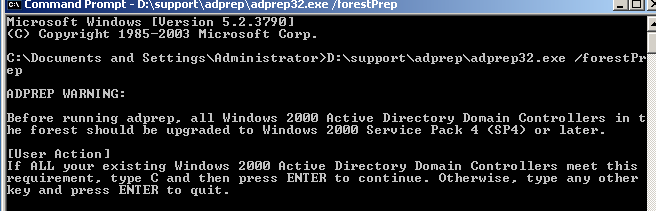
to continue, hit “c” and then enter, you should see a bunch of this:
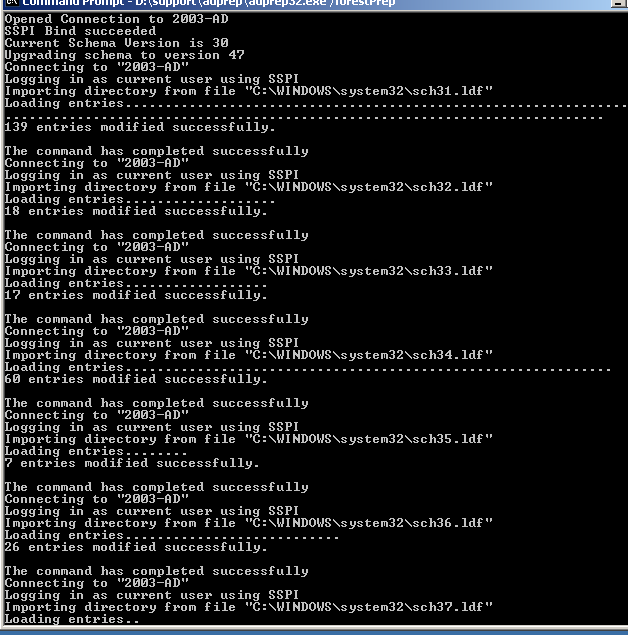
when that is completed you should see the following message:
before running the next step, make sure you are running on 2003 domain functional level
raise if necessary
hit yes, and you should get a successful message
now run the previous command with /domainPrep instead
you should get a successful message. From there we can move onto our new domain controller to start the process.
run dcpromo to start the installation process
hit next
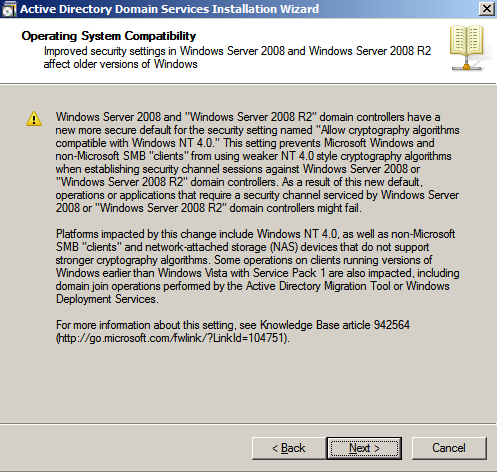
Next Again
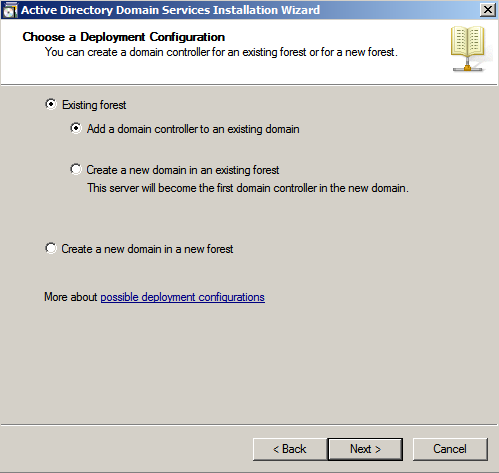
add to an existing forest
Next
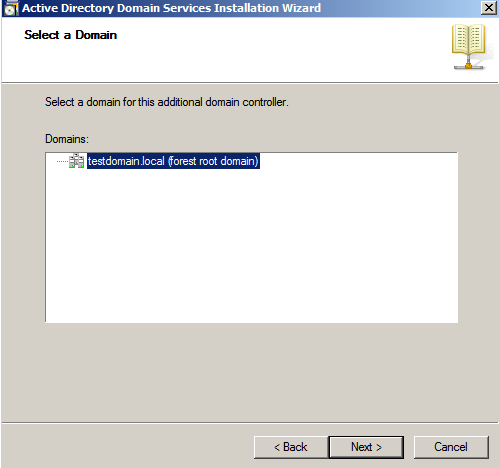
Next
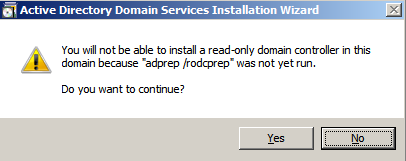
Select Yes
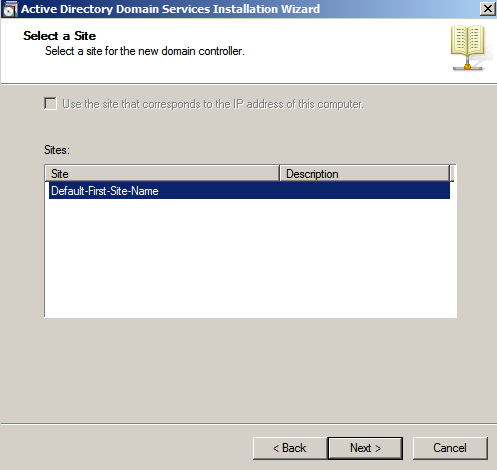
Next
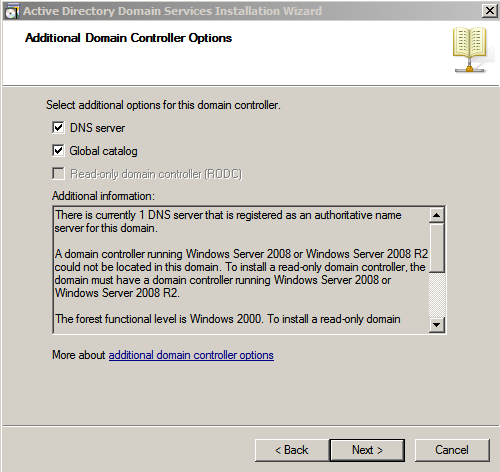
Next/Yes
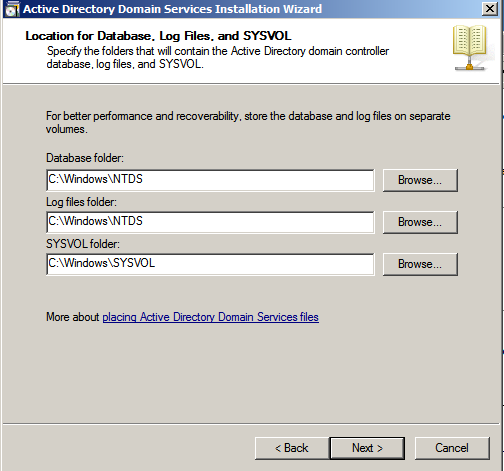
Next, Enter a password:
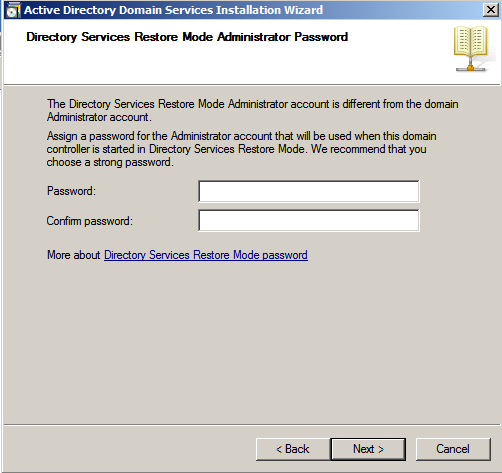
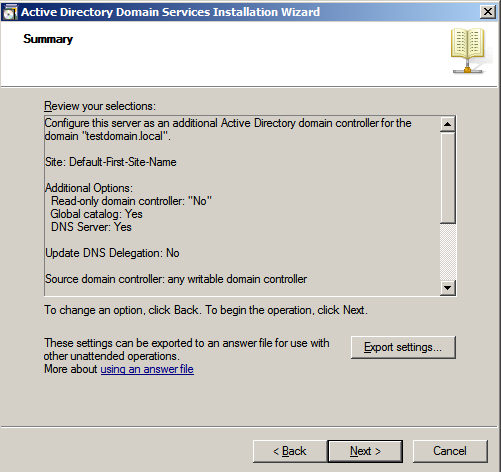
Select reboot on completion (you won’t be able to do anything anyways until it reboots)
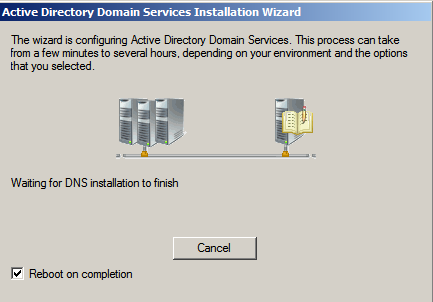
On to moving the FSMO Roles:
The five FSMO roles are:
- Schema Master
- Domain Naming Master
- Infrastructure Master
- Relative ID (RID) Master
- PDC Emulator
now that that’s been said, from here, go to your primary domain controller, and go
start –> Run and type – regsvr32 schmmgmt.dll
hit enter, and you should get a confirmation message that it worked correctly.
then in the run window, type “mmc” to open Microsoft Management Console, go to File, and Add a snap-in. hit add, and select active directory schema
from there you should have the following window:
- In the console tree, right-click Active Directory Schema, and then click Change Domain Controller.
- Click Specify Name, type the name of the domain controller that will be the new role holder, and then click OK.
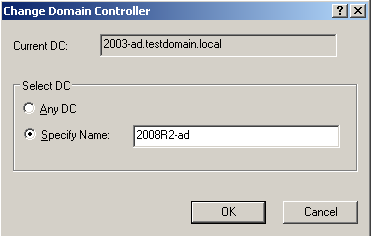
after that, right click on the schema, and select “operation masters”, and then change, it will ask you, are you sure? from there hit yes
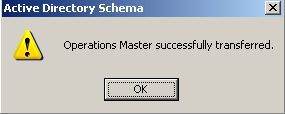
sweet, that was the hard one, from there we have to change the domain naming transfer role, open up Active Directory Domains and Trusts on your 2003 Machine
from here, right click Domains and Trust, and go to connect to domain controller, from here connect to you new 2008, and then select operations master
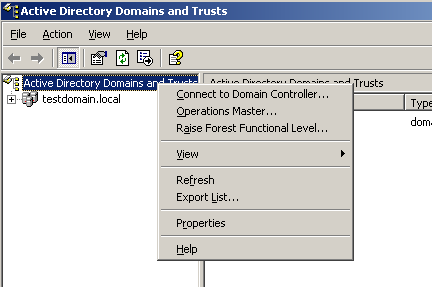
Look familiar?
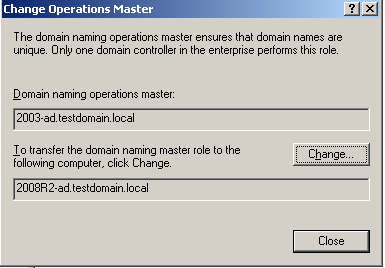
transfer this to new new server as well
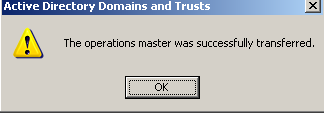
Bam! those are the two hard ones!
from here go to you 2008R2 Box, and Open Active Directory Users and Computers, and right click on your domain, in this example, it’s “test domain”, right click, and go to operations master
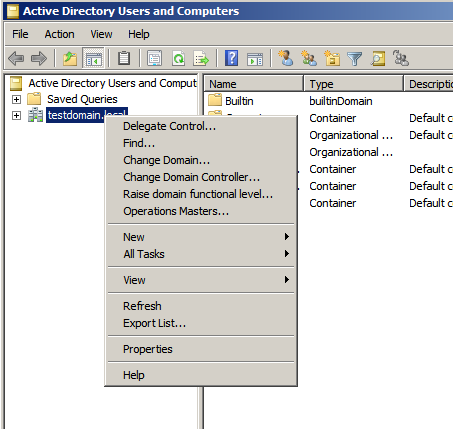
from here, change the RID, PDC and Infastructure over to your 2008 Box
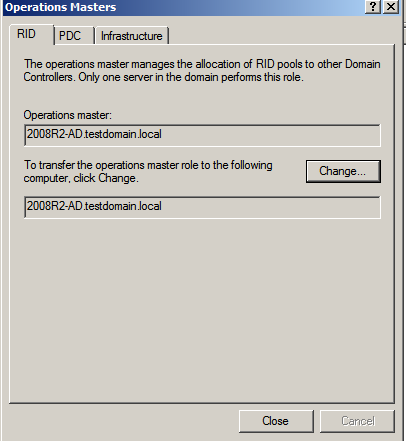
from there, open a command prompt, and see where you are at:
type netdom query fsmo
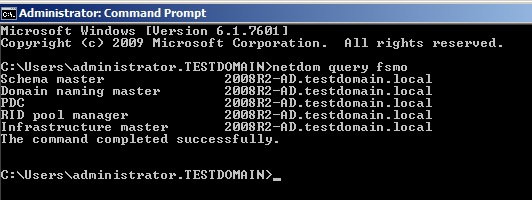
as you can see all FSMO roles have been successfully transferred. From here we have a few things left to worry about, like DHCP! What do you do with that?
go to your primary DHCP server, and Stop the DHCP Service, open a command prompt and do the following:
netsh dhcp dump >C:dhcp.txt
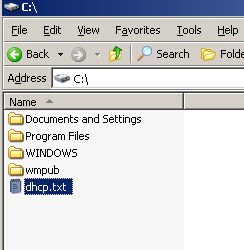
it will export your DHCP to a text file in your C:/, copy that to you new server’s C:/
run the following command:
netsh exec > c:dhcp.txt
that’s it! your DHCP has been migrated, all you have to do is start the service, however, make sure you change your Primary DNS server, your Secondary (if applicable) and your WINS (if applicable) otherwise you will be passing out addresses from the old server.
Finally there is one last step, decommission the old server, unplug the NIC(only if nothing else is running on that server), and log into the new 2008R2-DC
Go into your advanced network settings, and add the IP from the old server like so:
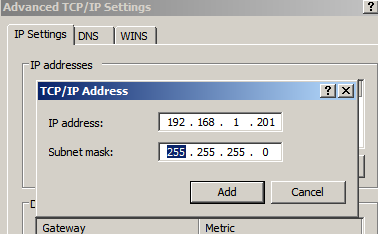
also change your DNS Settings so the local server is the primary
Additionally, you want to move your NTP Server from your primary to your new Domain Controller by clicking below
http://blog.zwiegnet.com/windows-server/moving-windows-ntp-server/
That’s It!
expect that there are some UN-forseen dependencies that this article more than likely has not covered, moving active directory can be a big deal if you have not thought of this ahead of time, if you did all the above steps you should be in the clear at this point
Thanks you for reading my article!
My partner and I stumbled over here different web address and thought I should check things out.
I like what I see so now i’m following you. Look forward to exploring your
web page.