
pGina OpenLDAP TLS/SSL Windows 7
pGina OpenLDAP TLS/SSL Windows 7
This blog continues where the original left off Configure pGina OpenLDAP Windows 7
Login to pGina, and browse to the plugin section
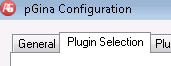
from here select the LDAP module, and then hit “configure”
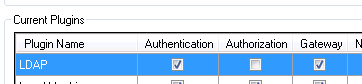
from here you need to change the SSL and port setting as follows:
this uses port 636 and SSL, the default TLS configuration
from here hit apply, you should see a save confirmation
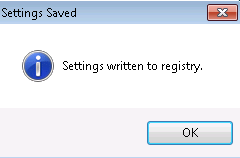
from here we need to test, so browse to the “simulation” tab
Enter your Username/password, and then click the green triangle to re-test the configuration
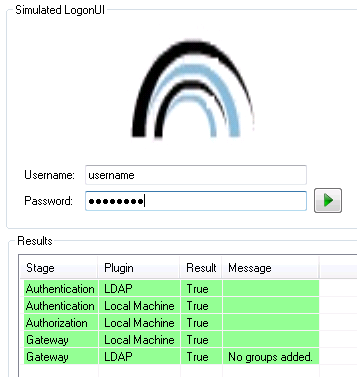
you should see that LDAP authentication worked.
That’s it!
Hosted Windows/Linux Servers at www.zwiegnet.com/go
Related guides: Configure pGina Windows 7 389 Directory Server Authentication | Configure LDAP over TLS CentOS 6
1 Comment