
Configure CUPS Printing on CentOS
Configure CUPS Printing on CentOS
when you need to setup a CentOS Linux print server, CUPS (Common UNIX Printing System)to the rescue!
login to your server, and su to root

install CUPS + all dependencies


start the cups service, and then set to to run on startup

to best administer CUPS we need to configure the web GUI

add the following line to the top (this allows easy administration)

safelist your network to allow access

–obviously you want to enter the IP of the server here, rather than what i have,
now allow your local subnet to have access to the web GUI
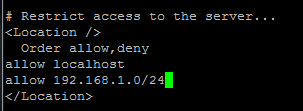
that’s just for the web access, but for the ADMIN pages, you may want to lock it down further:
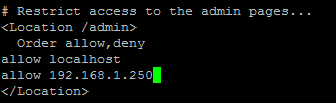
save + quit after all configured
also make sure to allow the port through IPtables (if enabled)
restart the cups service once completed

browse to https://serverip:631
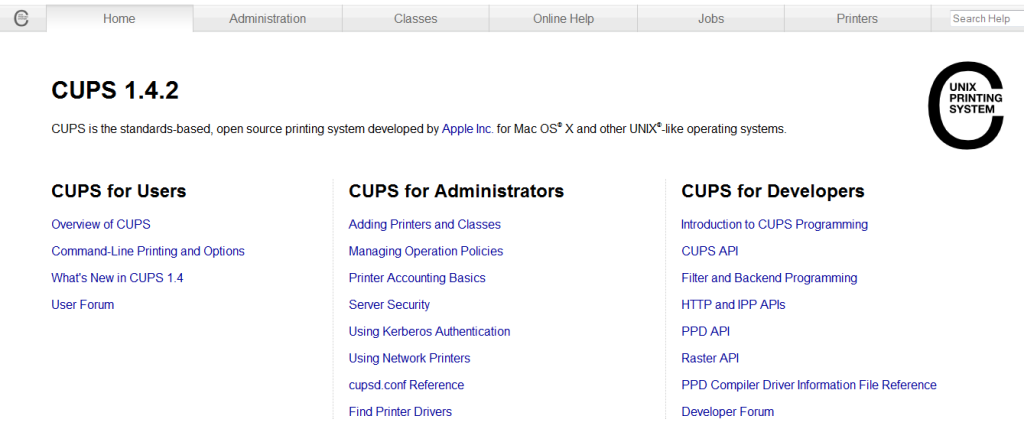
From here you can add printers, etc
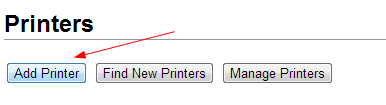
to add a new printer click “administration” add printer
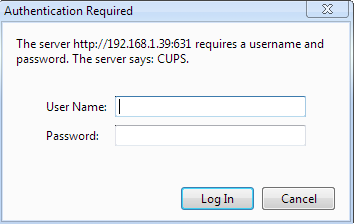
login
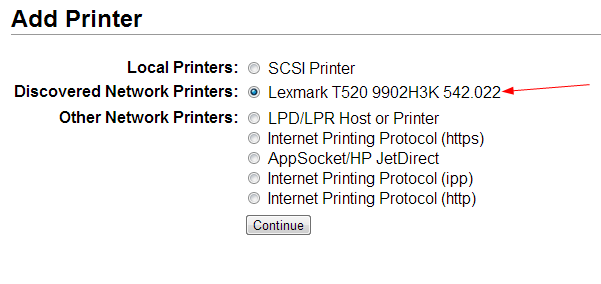
for this case, it’s a network printer (automatically detected)
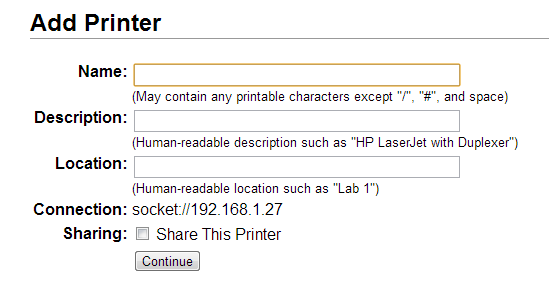
configure as needed
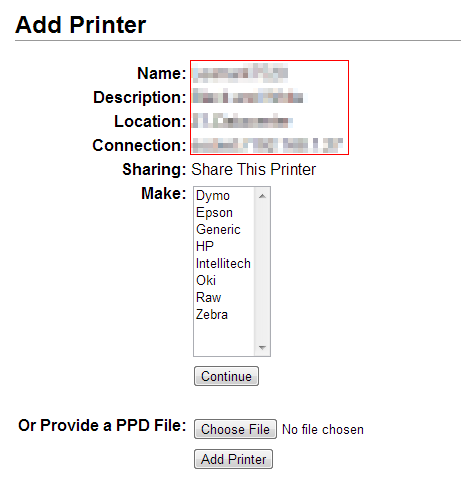
i usually share with the Generic Driver and hit continue (defaults)
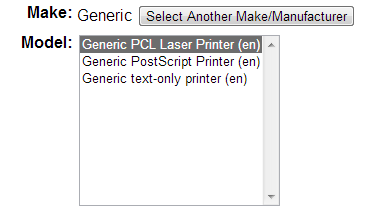
Hit add printer, and Done!
now go to “printers” and print a test page
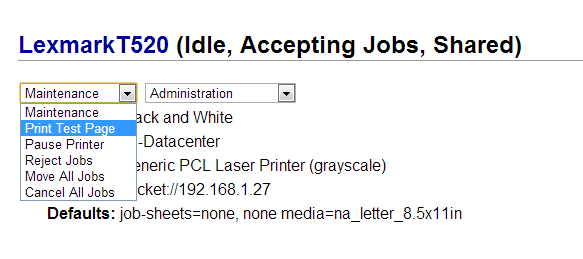
CUPS configured correctly!
you may also want to remember this command:

Also, you may want to consider configuring cups to allow “reprints”
http://blog.zwiegnet.com/linux-server/cups-reprint-job-centos-6/
To get a hosted CentOS Linux Server visit www.zwiegnet.com/go to get started today!
Related guides: Configure CUPS Web Interface for SSL CentOS 6 | Restore CUPS configuration to New Server CentOS 6