
Configure pGina Windows 7 389 Directory Server Authentication
Configure pGina Windows 7 389 Directory Server Authentication

We have decided to configure a Windows 7 client to authenticate with LDAP or OpenLDAP. This is a good idea because LDAP is cross-platform and is an extremely stable platform, it also enables ease of administration. Let’s get started.
Download/Install pGina, get the stable version
http://pgina.org/download.html
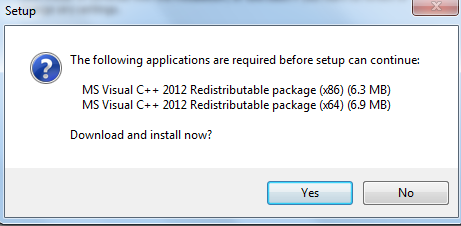
yes, go ahead and download/install the above proprietary packages
Launch, and configure the plugin section as follows:
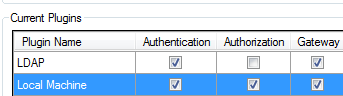
click on “ldap” and configure
Configure the LDAP servers, seperate by a space
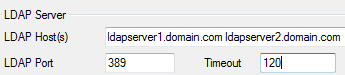
configure the account to search LDAP, the password, and the group/OU that user accounts are in, and change member attribute to member.

configure searching for DN as follows:
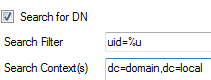
now browse to the “gateway” tab, and configure a LDAP group to be in the local administrator group
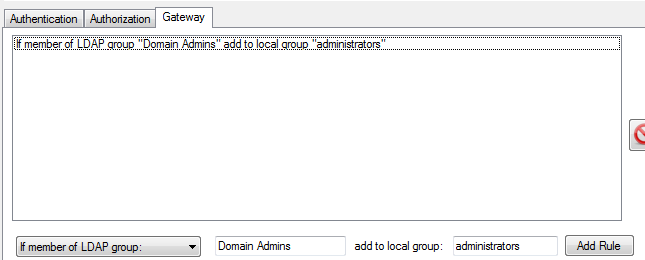
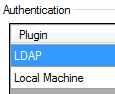
Save Settings, now go to the pGina plugin order, and set LDAP to first like so:
test your settings with the simulation tab
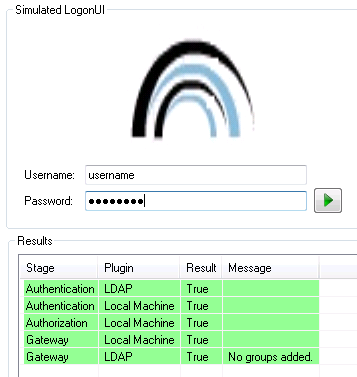
you should see the following:
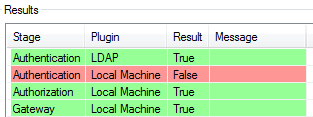
this tells us that LDAP authentication worked, and you do not have a local user account by that name.
To configure using TLS/SSL Click here
Logout, and test your LDAP authentication, it should now work!
Related guides: pGina OpenLDAP TLS/SSL Windows 7 | Install 389 Directory Server CentOS
1 Comment