
Join Linux Mint to Windows Domain
Join Linux Mint to Windows Domain
let’s face it, Linux is being used everywhere, even in corporate environments. So what we need to do is have these devices by what’s in place, rather than other directory servers.
open the Linux Mint software manager
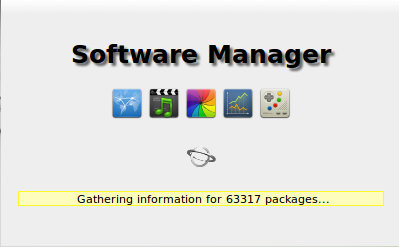
now download/install both packages by clicking on them, and hitting “install”

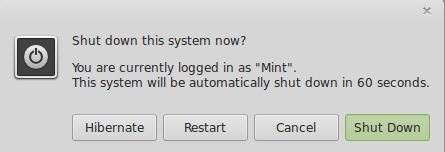
now do a quick restart
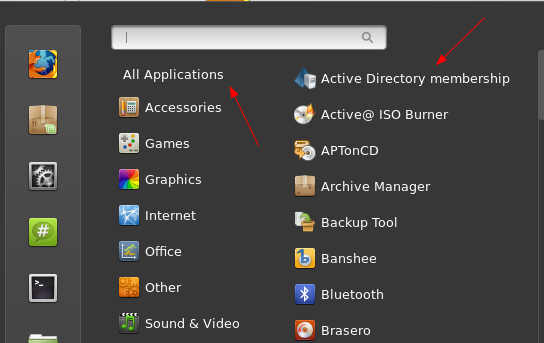
under all applications, the first one should be “Active Directory Membership”
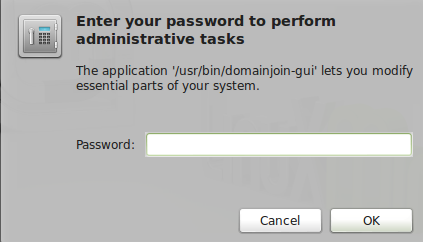
you will need your root password
enter the information as shown, and hit “Join Domain”
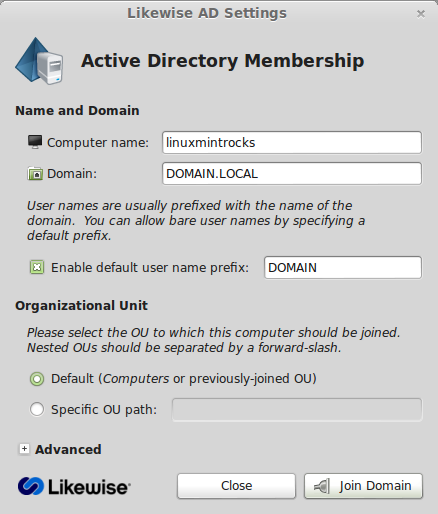
Enter your domain administrator password
almost instantly, BAM! works

an object should appear in active directory users & computers
now logoff, and login as a domain user. (do not do DOMAIN/username) just normal username/password
now we verify we are logged in as a domain user
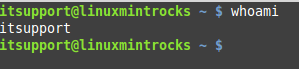
that’s it!
To get a hosted Linux Server visit www.zwiegnet.com/go to get started today!
Related guides: Join Fedora to Windows Domain | join computer to domain command line