
This is a fairly common task. Usually when you are configuring an application, you will get something that says like “now go to line 293 and change this word….” if you are only counting by hand, that’s quite a goal to accomplish. Here’s the quick and easy way
Prerequisites
this can be done logged in as any user
Line numbers are a display setting of the editor only; nothing is added to the file itself.

1) Open the file
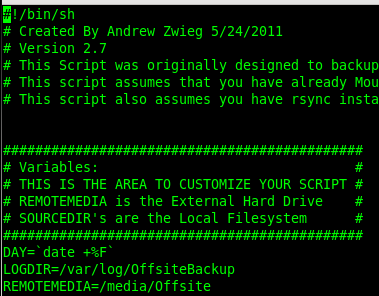
let’s edit the sample file OffsiteBackup.sh

as you can see there are many lines in this script
2) Turn on line numbers
Let’s hit our magic keys, CTRL+C

you should notice the above appear at the bottom of you screen
In vim, Ctrl+C simply interrupts and returns you to normal mode, which is why it prints that hint. Pressing Esc does the same job and is the usual way to make sure you are in normal (command) mode before typing a colon command.
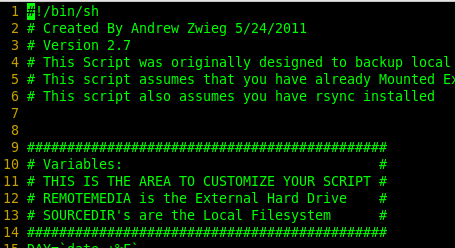
from here enter :set nu, and hit enter

there we have it, line numbers in our VI window!
Handy related commands
:set nu          " show line numbers (long form :set number)
:set nonu        " hide them again
:set nu!         " toggle on/off
:set rnu         " relative numbers (vim), handy with 5j or 3dd
:293             " jump to line 293
293G             " same, from normal mode
:set ruler       " show the current line and column in the status line
You can also open a file directly at a line from the shell:
vi +293 /etc/httpd/conf/httpd.confMake it permanent
Add the setting to your editor startup file so every session shows numbers:
echo "set number" >> ~/.vimrcThat is for vim. Classic vi (for example on Solaris) reads ~/.exrc instead, where the same set number line works.
Troubleshooting
- Typing :set nu inserts text into the file: you were still in insert mode. Press Esc first, then type the colon command.
- The numbers are gone next time:
:set nulasts only for the current session; use the startup file above. - Numbers are not saved in the file: correct, they are display only. To print a file with numbers in the shell use
cat -n fileornl file. - On RHEL, AlmaLinux and Rocky 9/10,
viis the small vim-minimal build andvimcomes from the vim-enhanced package; the colon commands above work in both.
That’s it!
Hosted Linux Servers at www.zwiegnet.com/go
Related guides: find shared libraries for binary ldd · Downgrade package CentOS 6 · Developing Applications for RHEL/CentOS
1 Comment