
Un-mount NFS share on Windows 7. Much like in the Linux/UNIX operating systems, you need to unmount drives from time to time. If you have an NFS share mounted on Windows 7 it can be a pain to get rid of, especially if the share is unavailable. The Client for NFS includes its own umount command for exactly this.
Prerequisites
- Windows 7 Enterprise or Ultimate with the Services for NFS / Client for NFS feature installed (the edition that includes it; see Mount NFS Share Windows 7 for the setup).
- The drive letter the NFS export is mounted on.
1. Open a command prompt
Open up a command prompt (Start, type cmd, Enter). A normal prompt is fine for mounts made in your own session.

To see which NFS shares are mounted and on what letters, run mount with no arguments:
mount2. Unmount the share
Issue the umount command (notice that it’s U-Mount, not UN-Mount) followed by the drive letter:
umount w: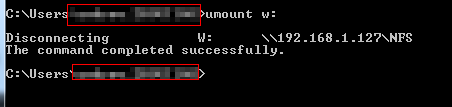
Windows reports Disconnecting W: \\192.168.1.127\NFS and The command completed successfully. That’s it! Your drive should no longer be mounted.
Useful options
umount -aremoves every NFS mount in the session.umount -f w:forces the unmount, which helps when the server is down and the normal command hangs or refuses.
Verify
Run mount again (the share should be gone) and check that the drive letter no longer appears in Explorer.
Troubleshooting
- ‘umount’ is not recognized as an internal or external command: Client for NFS is not installed, or you typed
unmount. Turn the feature on under Programs and Features, Turn Windows features on or off, Services for NFS. - The command hangs or times out: the NFS server is unreachable. Use
umount -f, and if the letter still shows up, sign out or restart the Client for NFS service. - Drive comes back after login: it is being mapped again by a login script or scheduled task; remove the mapping where it was created.
Newer Windows and Linux equivalents
On Windows 10/11 Pro and Enterprise the client is the optional feature Services for NFS, Client for NFS, and on Windows Server 2012 and newer it is installed with Install-WindowsFeature NFS-Client; the mount and umount commands work the same way. On Linux the equivalent is umount /mnt/nfs, with umount -f or umount -l for a dead server; see Troubleshoot Stuck and Hung NFS Mounts on AlmaLinux 10.
If you are interested in a hosted Linux or Windows server visit www.zwiegnet.com/go today.
Related guides: Mount NFS Share Windows 7 | Mount NFS Share Server 2008R2