
Configure ZSH on CentOS with LDAP
Configure ZSH on CentOS with LDAP
ZSH or /bin/zsh is an amazing drop-in replacement shell for Bash. I would HIGHLY reccomend this shell for administrators, based on the command line completion features that far surpass bash, as well as a few others:
- Drop-in replacement for BASH
- Command-line completion
- Shared history
- Spelling correction
- Theme-able
- Fully customisable
ZSH is not installed by default on CentOS, only BASH and SH, you can check this with cat /etc/shells
yum -y install zsh
For use we use LDAP logins, so using the normal chsh command does not work. Here’s what works:
Change the default shell in LDAP to /bin/zsh
Install ZSH on all servers, or anything that has LDAP access
login as a standard user, and type the command “zsh” to setup the shell (note there is a few steps as it’s alot nicer than bash)
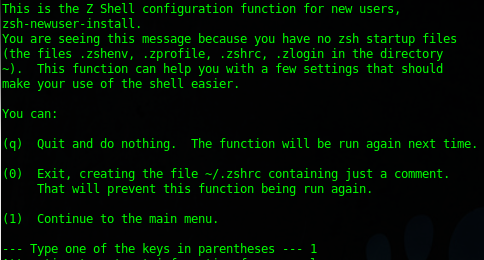
once completed you will see the following:
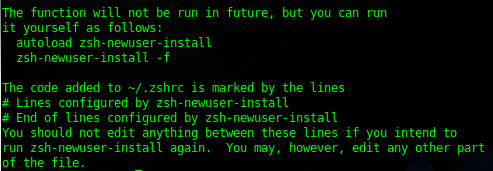
change the users’s .profile (if you use GNOME/KDE graphical login, otherwise it will use the system default
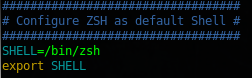
All set, now logout, and then log back in again to reload the .profile settings.
Auto-Complete in ZSH:
Why ZSH is better than bash for Administrators is plain and simple auto-complete. In Bash, it’s Case-Sensitive, and you have to type at least 4 characters in order for it to even give an idea of what you want to try.
let’s take a look at ZSH
change to ZSH if you have not already using zsh command, or logout/log back in to an account that has zsh as default
cd /etc
do a ls / and hit tab ONCE (in bash you have to do it twice to get the same result)
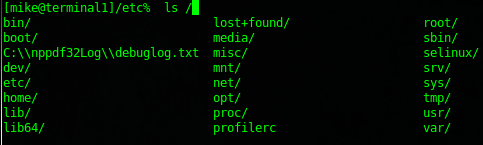
ok, a little nicer, but what about this?

as you can see, this makes typing a TON Easier.
if you hit tab several more times, it goes through the options one by one in alpabetical order, very nice!
That’s it, to find more on how to use the ZSH shell visit http://zsh.sourceforge.net/Doc/c
Related guides: Configure LDAP Server on CentOS 6 | Limit Sudo to specific commands