
Add A User to Active Directory
so you’re new to active directory? Here’s what you will need to know about adding users to active directory, this will work for 2003, and 2008, as well as 2008R2
The tool we are going to use to configure users is called Active directory users and Computers, you should either have it on your primary domain server, or if you have remote administration tools, the icon with either way look as follows:

open this up, and select the proper OU (organization unit)
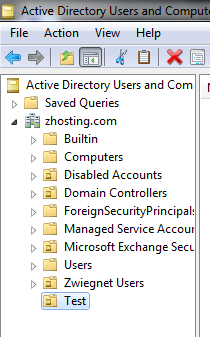
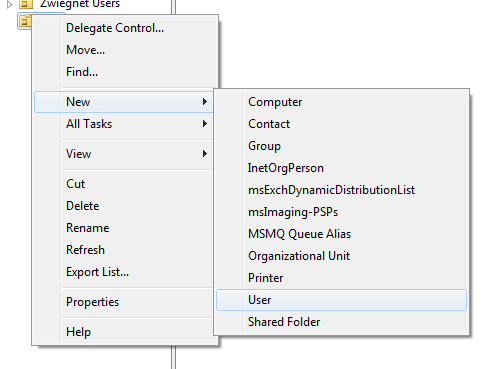
for this example, we are going to put the user in the “Test” OU, right click, and hit “new”, and then “user”
insert the user information accordingly 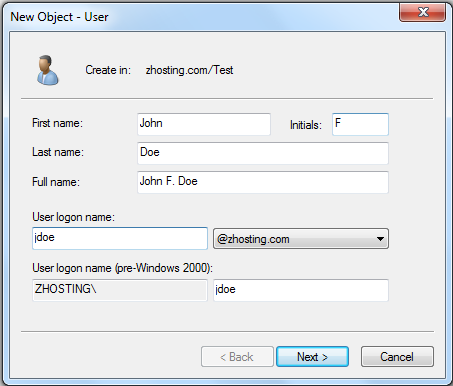
hit “next”
type in the password, and change any additional settings
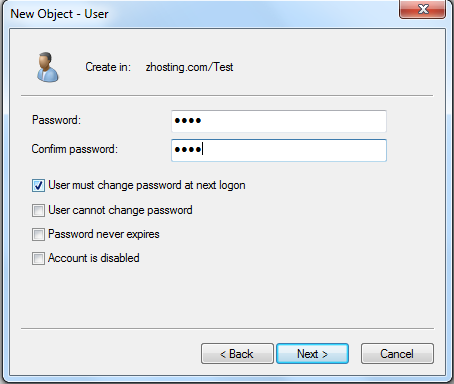
for this example, we set the password as “temp” and the user will have to change when they login.
hit next
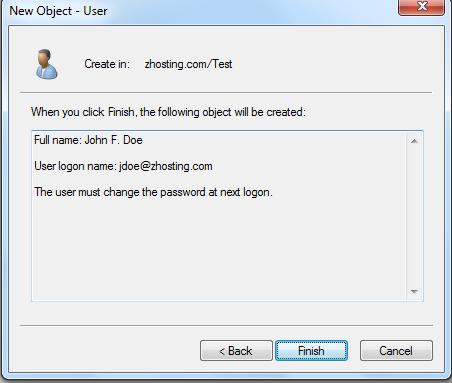
verify the user information is correct, and hit “Finish”
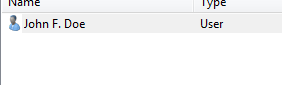
as you can see, our user has been successfully created.
That’s it, that’s all there is to creating a user in active directory users and computers
For more questions, or professional assistance, visit www.zwiegnet.com
Related guides: Investigate Account Lockouts in Active Directory | join computer to domain command line