
Reset Root Password Linux Mint
Reset Root Password Linux Mint
we’ve all been there. Reboot Linux Mint.
Hold the Shift Key (that will get you into the grub menu)
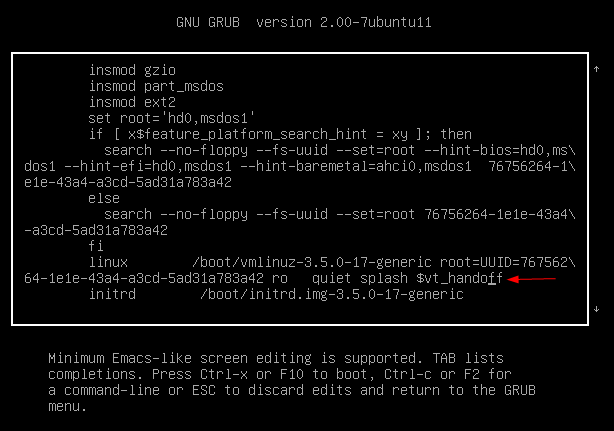
press the “e” key to get into boot params
replace the text where the arrow is ($vt_handoff) to init=/bin/bash
Now Press F10 to continue the boot

from here we need to mount our root partition

mount -o remount,rw /

issue the passwd root command
Enter new password
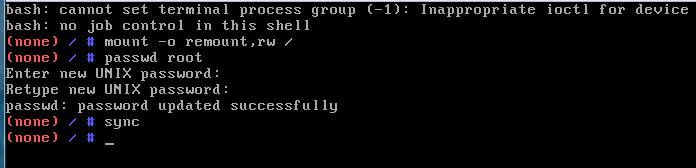
issue the sync command so that changes are synced to OS, and reboot
reboot -f
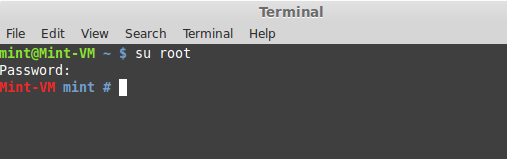
login, and make sure you can SU to root with success.
That’s it!
If you are interested in a Linux-Based solution, visit www.zwiegnet.com/go to get started today
Related guides: Install Ksplice on Linux Mint | Choosing a Smart Root Password