
Install SQL Management Studio 2008R2
To Install SQL Management Studio 2008R2 first you need to download it, to do so go to the following link:
http://www.microsoft.com/en-us/download/details.aspx?id=7593
choose the 32 or 64 bit depending on your Operating System (Provided you have some technical background you more than likely will got with the x64)
Open the Installer by running as administrator it should look like so: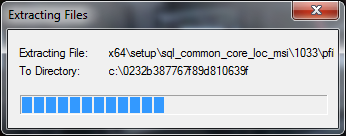
once done extracting you will be prompted with the following screen:
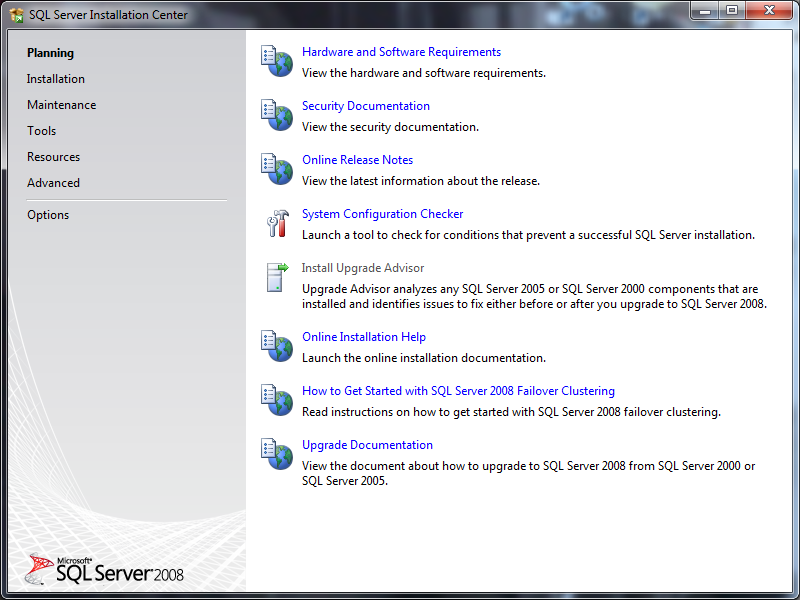
switch to the installation part of the wizard from the left panel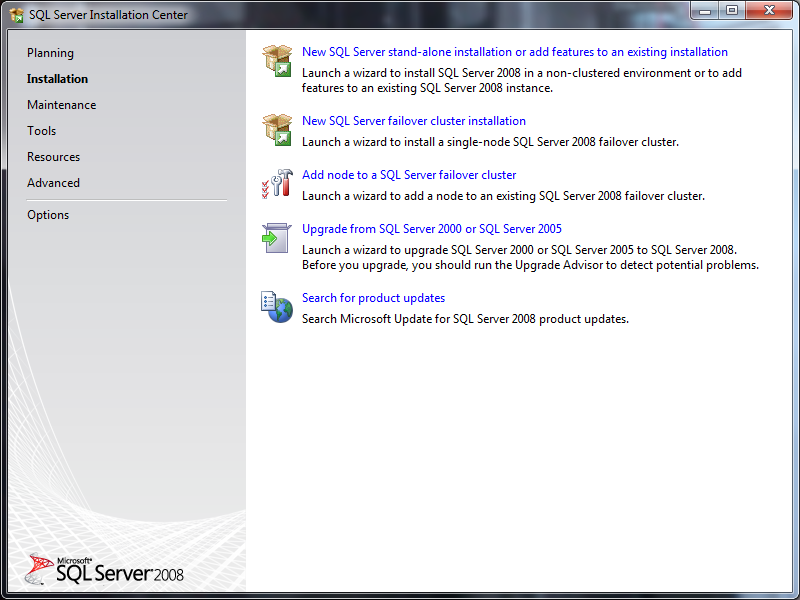
Select New SQL Stand Alone installation, or add features……
Make sure to install the management Tools – Basic
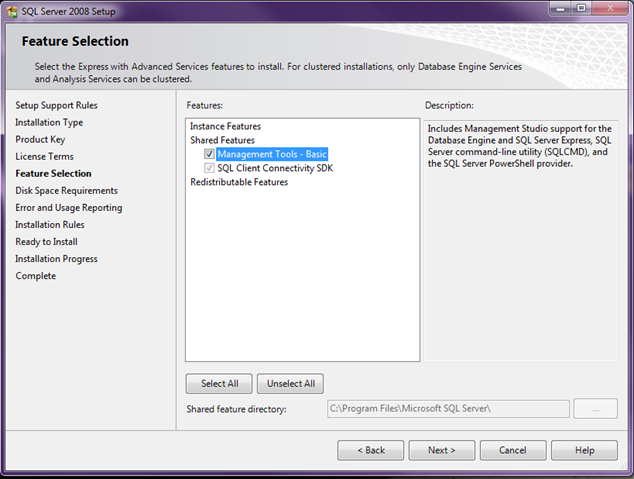
verify that all installed correctly after a few next/next/finish clicks
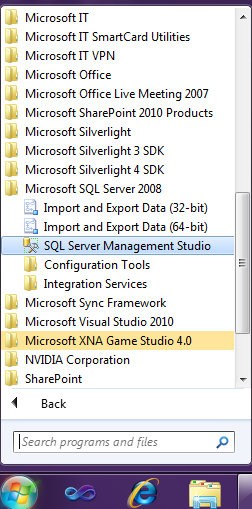
open the application to verify it launches
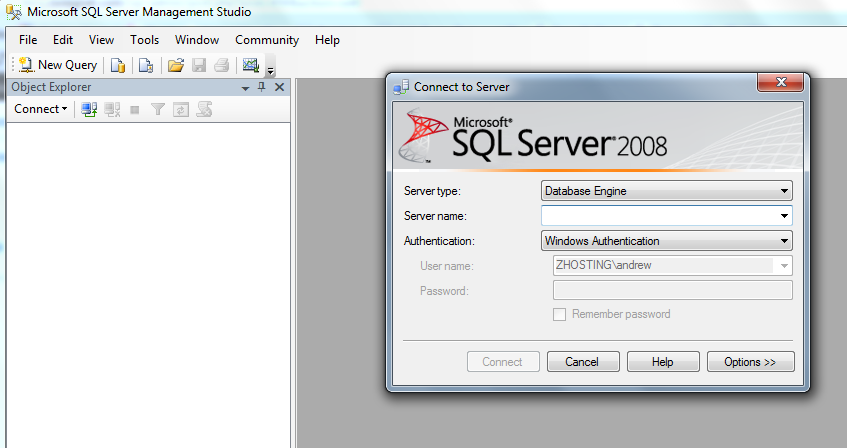
if you have made it to this point, Success! You have installed SQL Server Management Studio 2008.