
Most sysadmins will look this up second as soon as they get a Server Core box installed, or pretty close: there is no Control Panel to click through, so the firewall has to be handled from the command line. This guide shows the original one-liner, how to check and undo it, and the safer alternative of opening only what you need.
Prerequisites
- Windows Server Core 2008 R2 or later (the
netsh advfirewallcommand is the same on 2012 R2, 2016, 2019, 2022 and 2025). - An elevated command prompt or PowerShell window (local administrator).
- A plan to turn it back on. A server with its firewall off relies entirely on the network perimeter for protection.
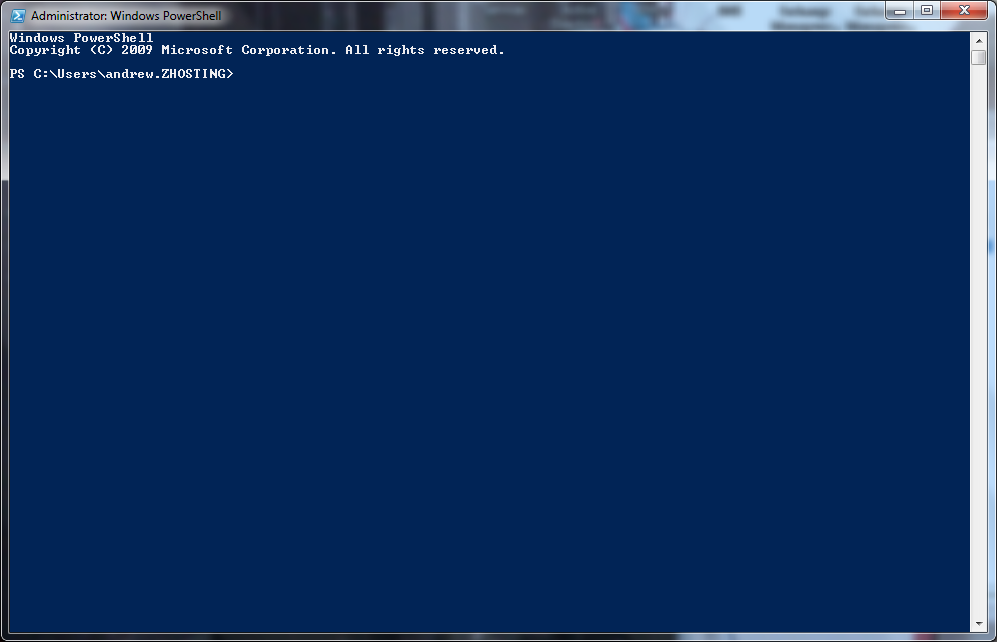
1. Open a PowerShell or command window
Sign in on the console and use the command prompt or PowerShell window that opens automatically.
2. Turn the firewall off for all profiles
Issue the following command:
netsh advfirewall set allprofiles state off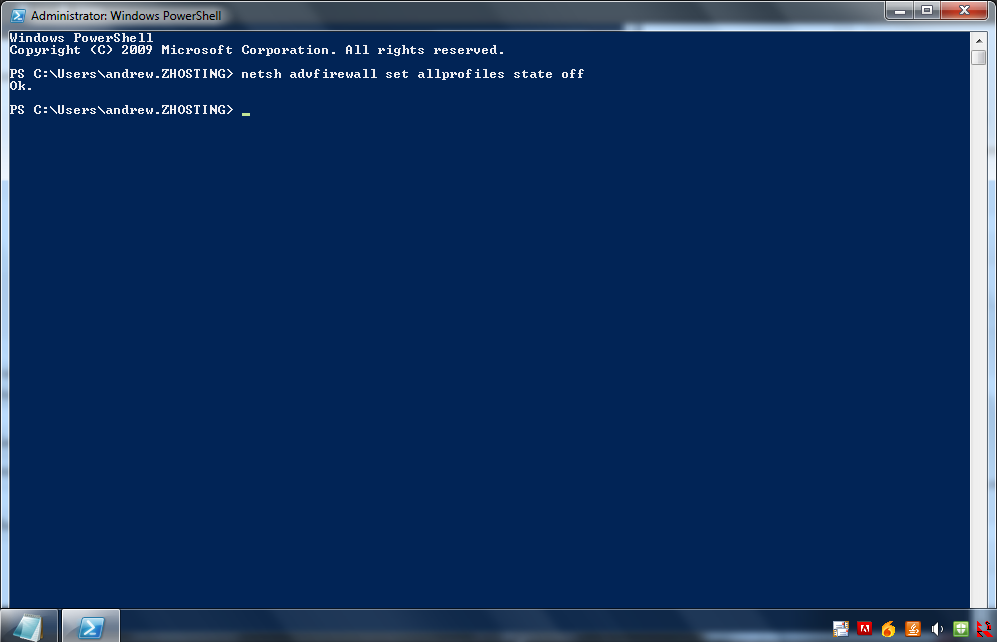
Once you see the letters Ok., you are good to go. Windows Firewall keeps three profiles (Domain, Private and Public), and the active one depends on the network the server is connected to. allprofiles turns all three off, so it doesn’t matter which one is active. The change takes effect immediately; a reboot isn’t strictly needed, although the original advice here was “remember to reboot, it’s Windows”.
To switch off just one profile, for example only on the domain network:
netsh advfirewall set domainprofile state off3. The PowerShell equivalent (Server 2012 and later)
Set-NetFirewallProfile -Profile Domain,Private,Public -Enabled False4. Verify the state
netsh advfirewall show allprofiles stateor
Get-NetFirewallProfile | Format-Table Name, EnabledEach profile should show State OFF or Enabled False.
Better: open only what you need
Turning the whole firewall off is fine for a lab, but on a production server it is usually better to keep it on and enable the built-in rule groups you actually use:
Enable-NetFirewallRule -DisplayGroup "Remote Desktop"
Enable-NetFirewallRule -DisplayGroup "Windows Remote Management"
Enable-NetFirewallRule -DisplayGroup "File and Printer Sharing"
To allow ping only:
New-NetFirewallRule -DisplayName "Allow ICMPv4 echo" -Protocol ICMPv4 -IcmpType 8 -Direction Inbound -Action Allowsconfig also has a Configure Remote Management entry that can enable remote management and ping responses for you. For PowerShell remoting, see Enable Remote PowerShell Access.
Turn it back on
netsh advfirewall set allprofiles state onTroubleshooting
- “The requested operation requires elevation (Run as administrator).”: the window isn’t elevated. Open it as an administrator.
- The firewall turns itself back on: a domain Group Policy is managing Windows Firewall and wins over the local setting. Change it in the GPO (Computer Configuration > Windows Settings > Security Settings > Windows Defender Firewall with Advanced Security) or ask the GPO owner.
- Don’t stop the firewall service: disabling the Windows Defender Firewall service (MpsSvc) is not a supported way to turn it off and can break other features. Use the profile settings shown above.
Related guides: Enable Remote Powershell Access | Add Another Hard Drive Server Core
2 Comments