
Create Document Library SharePoint 2010
creating a document library in SharePoint 2010 is relatively easy if you have the correct access, go ahead and logon to you SharePoint Site with the proper credentials to make this change
A document library is a list that stores files, with versioning, check-in/check-out, metadata columns and its own permissions. Each team or project usually gets its own library.
Prerequisites
- Permission to manage lists on the site. In SharePoint 2010 that comes with the Design or Full Control permission level (site owners have it).
- A short name for the library. The name you type first becomes part of the URL, so a name without spaces gives a clean address; you can change the display title afterwards.
1) Start a new library
Click on “site actions” and Create new document library
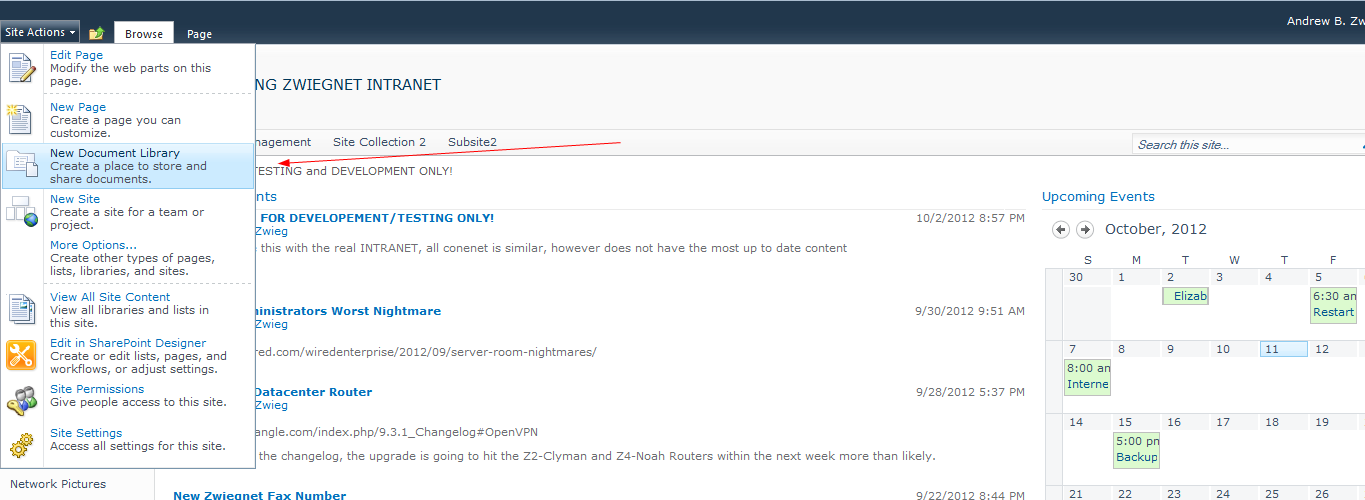
If you want more choices (for example a picture or wiki library), use Site Actions, More Options instead.
2) Fill in the options
go ahead and fill out your options as necessary
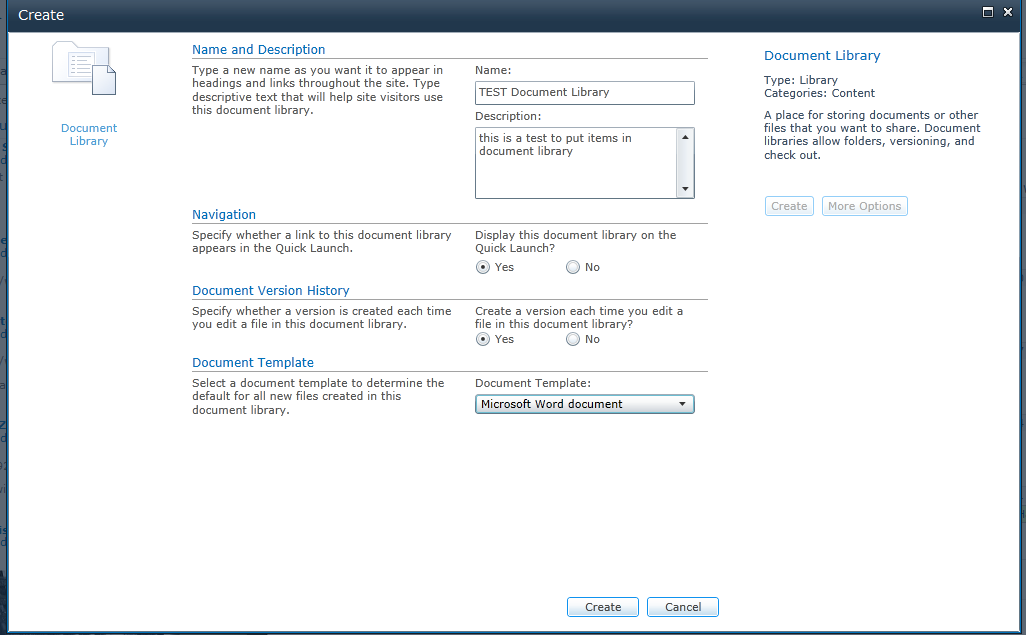
make sure you set the version history and document template as necessary for what you are doing
- Name and Description: shown at the top of the library.
- Navigation: choose Yes to put a link on the Quick Launch bar.
- Document Version History: Yes keeps a version every time a file is saved, so you can restore older copies.
- Document Template: the file type used when someone clicks New Document (Word, Excel, PowerPoint and so on).
3) Verify the library
as you can see we have our new document library setup and ready to go, now we just need to add documents!
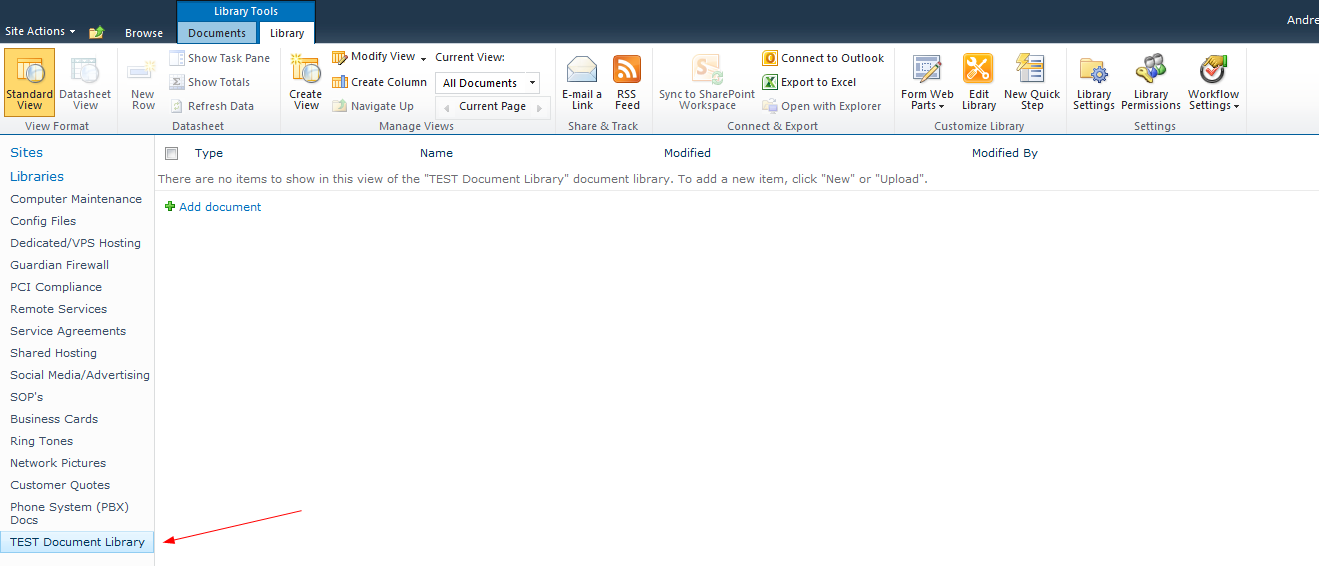
Upload a test file with Upload Document on the Documents ribbon to confirm it works.
After creating it
Open the Library ribbon and click Library Settings to fine-tune it:
- Versioning settings: choose major versions only or major and minor (draft) versions, limit how many versions are kept, and optionally require check out before editing.
- Permissions for this document library: stop inheriting permissions from the site if only some people should see these files.
- Open with Explorer on the Library ribbon lets users drag and drop many files; it needs the WebClient service running on the Windows client.
Troubleshooting
- No New Document Library option: your account lacks Manage Lists rights; ask a site owner.
- Ugly URL with %20: the library was created with spaces in the name. Recreate it with a short name, or live with it; renaming the title does not change the URL.
That’s it for today!
If you are interested in getting a Hosted SharePoint server for business collaboration, visit www.zwiegnet.com/go to get started today!
Related guides: Create a SharePoint 2010 Custom List | Install SharePoint 2013