
Configure DHCP Server CentOS 6
This article goes through setting up DHCP (Dynamic Host Client Protocol) what this service does is allow computers to be “just plugged in” and have access to the internet, rather than having to manually assign IP addresses to each device.
Let’s get started! Login to the server you are going to configure as a DHCP server and su to root

*** Make sure that you have a STATIC ip set on the Server before proceeding past this point ***
obviosly we need to install the DHCP role

set the service to start on reboot

from here edit the following file:

it should look like so:

now we need to edit the DHCP config file

here’s a basic config (customize for your environment)
# specify domain name
option domain-name
“mydomain.local”;
# specify DNS’s hostname or IP address
option domain-name-servers
192.168.1.x,192.168.1.x;
# specify WINS Servers
#option netbios-name-servers
#192.168.1.x,192.168.1.x;
# Allow Dynamic Updates to DNS
ddns-updates on;
ddns-update-style interim;
update-static-leases on;
# default lease time
default-lease-time 600;
# max lease time
max-lease-time 7200;
# this DHCP server to be declared valid
authoritative;
# specify network address and subnet mask
subnet 192.168.1.0 netmask 255.255.255.0 {
# specify the range of lease IP address
range dynamic-bootp 192.168.1.20 192.168.1.240;
# specify broadcast address
option broadcast-address 192.168.1.255;
# specify default gateway
option routers 192.168.1.1;
}
# Specify DHCP Reservations
host fixed-device.mydomain.local {
hardware ethernet 33:06:74:ac:ef:5b;
fixed-address 192.168.1.x;
}
Save + quit
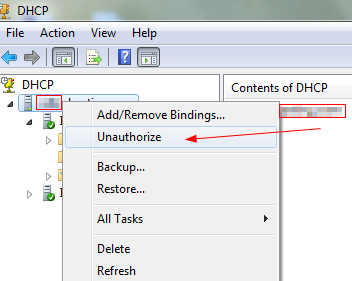
** At this point if you have a DHCP server already, please Un-Authorize/disable it, otherwise your new DHCP server will not work ***
In Win-Blows this is how to disable DHCP
Let’s start our DHCP Server

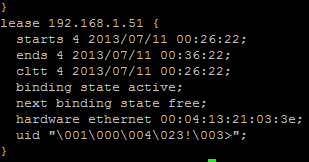
to view your current DHCP leases to make sure it’s working, you can view the dhcpd.leases (this file is one where you may want to use the grep command)

here’s an example of a used IP
That’s it!
To get a hosted Linux server visit www.zwiegnet.com/go to get started today!
Related guides: Configure DHCP Reservation CentOS | Configure DHCP for Dynamic DNS CentOS 6