
Active Directory 389 Directory Server Sync
Active Directory 389 Directory Server Sync
389 Directory Server is amazing, it allow you to connect to active directory, and sync users, passwords, etc. This is extremely useful, as most shops use both UNIX/Linux as well as windows. Let’s get started with the basics
domain.local = LDAP Domain, and AD Domain. These can be different internal domains, and it will still work.
Launch the 389 Console
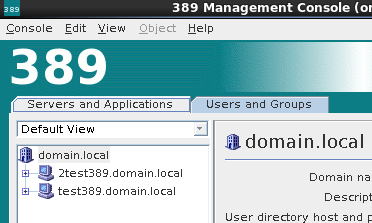
Double click on Directory Server
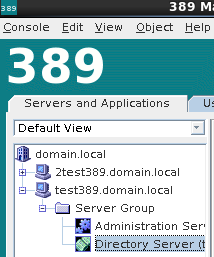
Browse to Directory –> Config
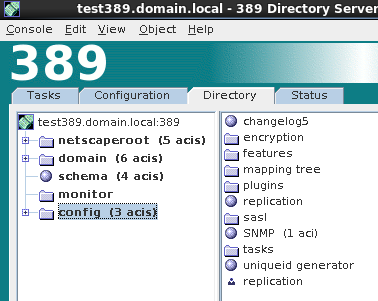
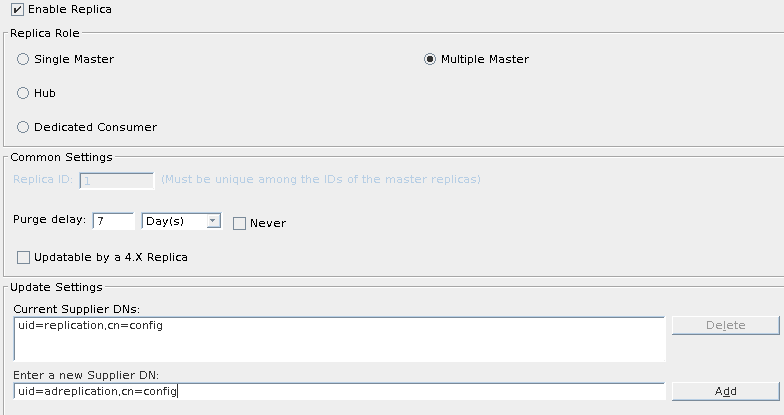
create a new user (keep in mind that we use the user “replication” for LDAP replication, so we need to pick something else, like “adreplication”
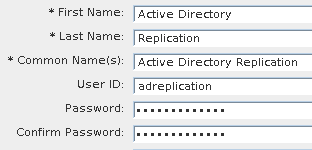
note in the bottom corner, it gives you the full LDAP syntax

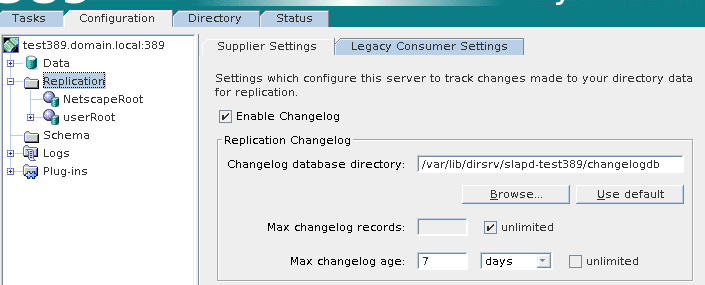
we needc to setup changelogging (if not already for LDAP multi-master)
for userRoot, enable multi-master, or Dedicated Consumer, depending on your configuration
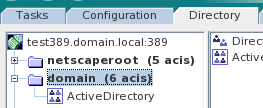
create a new OU in LDAP
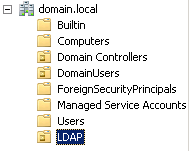
In your Active Directory Domain, create an OU in the root called “LDAP”
now we need to create a Windows Sync Agreement.
Right-Click User-Root and select “New Windows Sync Agreement”
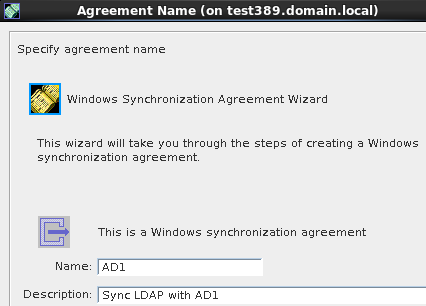
configure the connector according to your Windows Domain
configure the sync connector as follows:
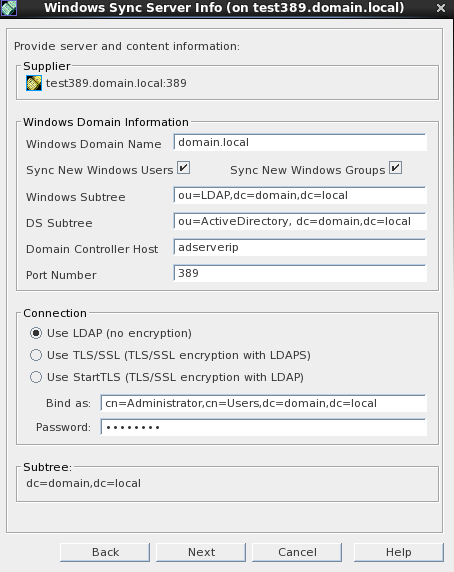
** Note, you do not need to bind as administrator, but it’s a good starting point to make sure your config works **
click done
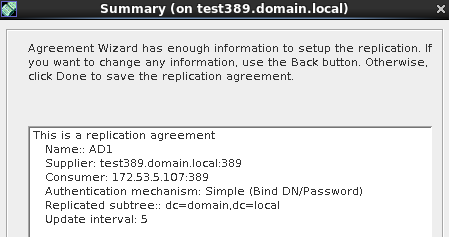
Right-click on the AD connector, and initialize, hit yes (make sure you have a full backup first)
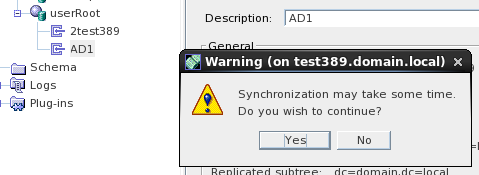
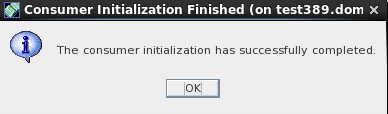
if all is configured properly, you should have a successfull initialization
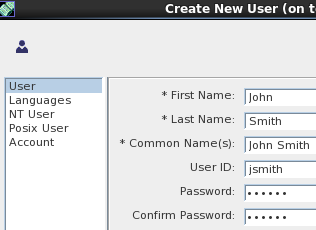
create a new user, fill out standard account fields
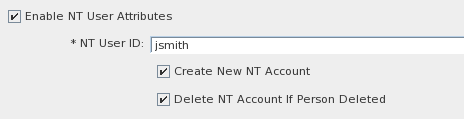
now go to the “NT User” column
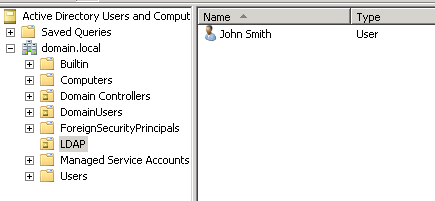
Save/Quit, now open Active Directory Users and Computers, and browse to the LDAP OU
now delete the account from Active Directory
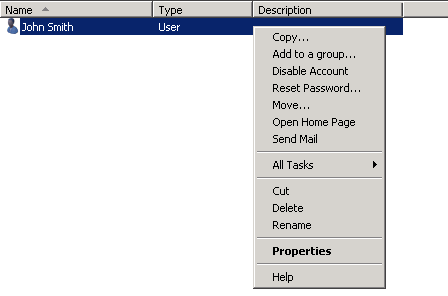
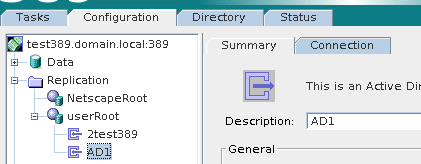
wait a few minutes, or if you want instant results, you can force a sync from Configuration –> AD1
Right click and select “Send And Receive Updates Now”
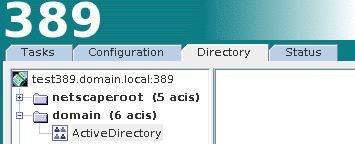
now take a look at your LDAP ActiveDirectory OU, and you will see it’s empty once again.
That’s it! You Have successfully configured two-way MultiMaster, MultiPlatform LDAP Sync!
Hosted Linux Servers at www.zwiegnet.com/go
Related guides: Install 389 Directory Server CentOS | 389 Directory Server MultiMaster Replication CentOS