
389 Directory Server MultiMaster Replication CentOS
389 Directory Server MultiMaster Replication CentOS
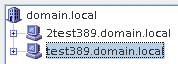
One of the amazing features of 389 directory server is multi-master replication, this is incredibly useful for high availability, and multi-site connections. This blog assumes you have 2 389 directory servers configured using this blog
Let’s get started, login to the 389-console on server1
as you can see we have our 2 servers registered in the console, let’s go to our current master, and double-click on “directory server”
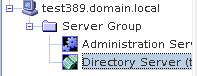
The First thing we need to do is create a replication user on EACH Ldap server, preferably the same, so it’s easier to remember.
Browse to “directory” and then “config” and right-click on config, and create new user
now go to Configuration –> Replication, and configure the changelog database for a local directory, 7 days, and the instance name
click save once completed (this step is important)
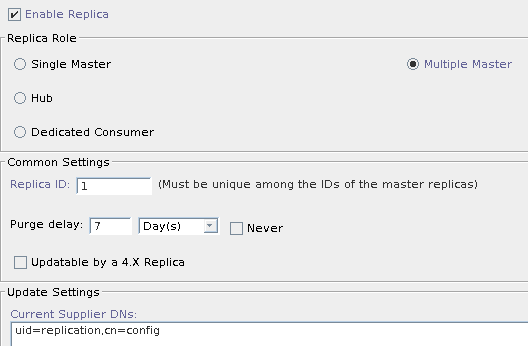
now click on “userRoot” and configure as follows:
basically click enable, then multi-master, fill out a unique replica ID (by that i mean it’s a different number for each server) and then add the newly created replication user and the one who can update settings.
Click save once completed, and now complete on the 2nd server (if you have not yet already)
now right-click userRoot, and select “new replication agreement”
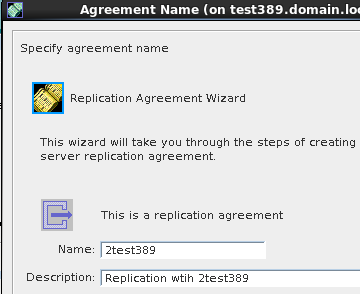
configure the replication agreement as follows:
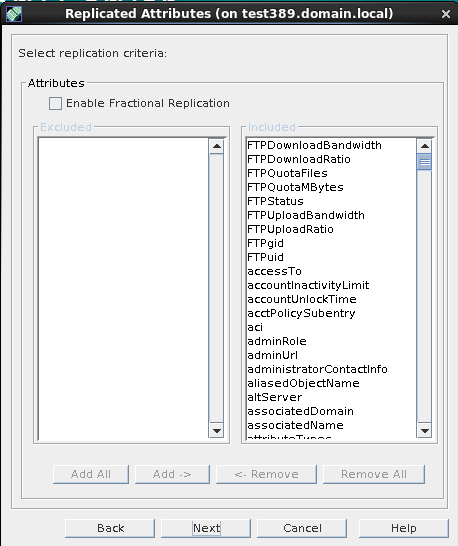
on the next step hit next (unless there’s some odd reason you may need fractional replication)
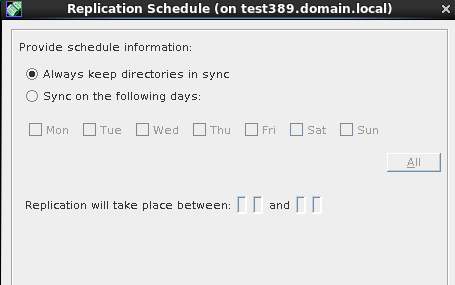
also set the times that you would like to replicate (most people i know would use the default option)
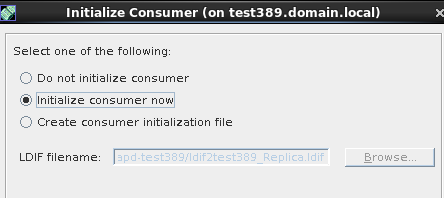
since this is the FIRST server we are adding, we are going to initialize, any time past now, if you have additional servers, you do not initialize
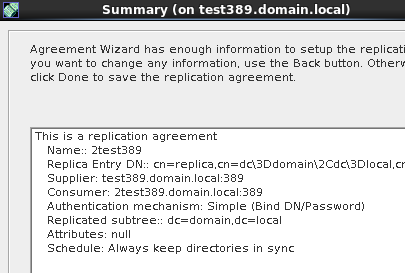
hit done, once all looks well
if all steps were followed properly, you should now see that the consumer initialized properly
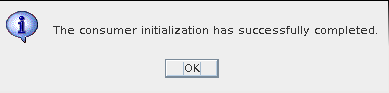
you will also notice the replication agreement is now in place
complete the same step on server 2
once completed, go to “status” and then “replication status”
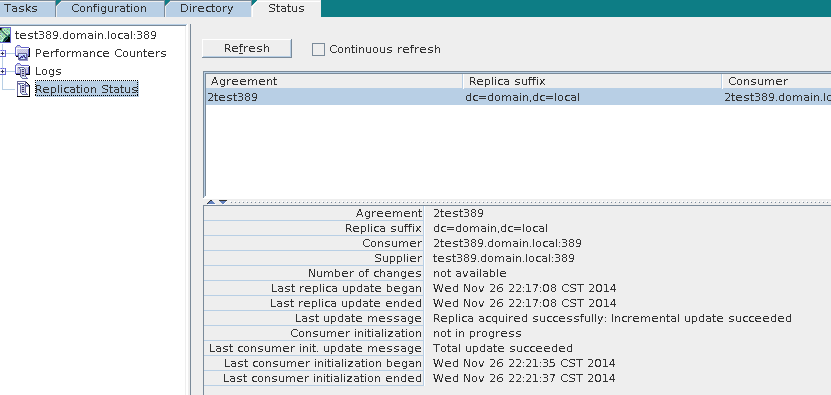
you should see a similar message on each server that replication has completed successfully.
That’s it! You have succesffully configured MultiMaster LDAP Replication on 389 Directory Server!
Hosted Linux Servers at www.zwiegnet.com/go
1 Comment