
Setup KMS Server on 2008 R2
KMS or key managment server is a way of activating large-scale deployments for Office, Windows Desktop and Server OS. This seems to be an impossible task for some administrators that are not used to the command line. Let’s get started
A KMS host is a normal Windows Server that holds a special KMS host key from your volume licensing agreement. Once it is activated with Microsoft, it listens on TCP port 1688 and activates volume-licensed clients on your own network, so the clients never have to reach Microsoft themselves. Everything below is done with slmgr.vbs, the Software Licensing Management script that ships with Windows.
Prerequisites
- Windows Server 2008 R2 (the steps and commands are the same on Server 2012, 2016, 2019 and 2022).
- A KMS host key (CSVLK) from the Microsoft volume licensing portal. This is not the same as the generic KMS client keys (GVLKs) that are already built into volume-licensed client media.
- Internet access from the server for its own one-time activation (or phone activation).
- Inbound TCP 1688 allowed from your clients. Windows Firewall has a built-in Key Management Service rule you can enable.
- Ideally, DNS dynamic updates allowed, so the KMS host can publish its
_vlmcs._tcpSRV record and clients find it automatically.
Step 1: open an elevated command prompt
open an elevated command prompt
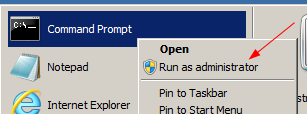
slmgr changes licensing for the whole machine, so it must run as Administrator; in a normal prompt it fails with an access denied error.
Step 2: change to the System32 folder
change to the System32 folder
cd C:\Windows\system32
Step 3: install the KMS host key
Enter you KMS Host key
cscript slmgr.vbs /ipk xxxxx-xxxxx-xxxxx-xxxxx-xxxxx
/ipk (install product key) replaces the current key with your KMS host key. Running it through cscript prints the result in the console instead of a pop-up dialog.
Step 4: activate the KMS host
from here activate the host
cscript slmgr.vbs /ato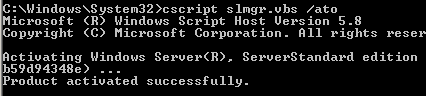
/ato activates the server online with Microsoft. After this the Software Protection service starts acting as a KMS host.
Step 5: check the status
here’s how to check the status
cscript slmgr.vbs /dlv
as you can see we have a few rearms available

/dlv (display detailed license information) shows the license status, the remaining rearm count and, on a KMS host, the KMS section with the listening port, whether DNS publishing is enabled and the current count of clients that have contacted it.
that’s pretty much it, once you have 25 active activation requests, the KMS will start working.
To be precise, KMS waits for an activation threshold before it activates anything: Windows client operating systems are activated once the count reaches 25, Windows Server operating systems once it reaches 5, and volume-licensed Office also needs 5. Until then clients report that the count is insufficient and keep retrying.
Point clients at the KMS host
Clients must be volume-licensed editions with a KMS client key (GVLK). If DNS auto-discovery works you do not have to do anything. Otherwise, set the host manually on a client from an elevated prompt and activate:
cscript slmgr.vbs /skms kms01.example.local:1688
cscript slmgr.vbs /ato
To check DNS publishing from a client:
nslookup -type=srv _vlmcs._tcpTroubleshooting
- 0xC004F074 on a client: the KMS host could not be reached. Check DNS (the SRV record above), name resolution of the host and that TCP 1688 is open on the host firewall.
- 0xC004F038 on a client: the KMS count is still below the threshold. Look at the current count with
slmgr /dlvon the host. - The client has a retail or MAK key: install the matching GVLK with
slmgr /ipkfirst. - KMS events are written to the Key Management Service log in Event Viewer (Applications and Services Logs) on the host.
Modern notes
Windows Server 2008 R2 has been out of support since January 2020. On Server 2012 and newer, the Volume Activation Services server role adds a wizard for the same job, and in an Active Directory domain, Active Directory-Based Activation can activate domain members without a KMS host or count threshold. The slmgr commands in this guide still work unchanged.
That’s it!
Related guides: Install Windows Updates on Server Core | Disable Windows Update Reboot