
If you came here looking to disable this one, you have came to the right place.
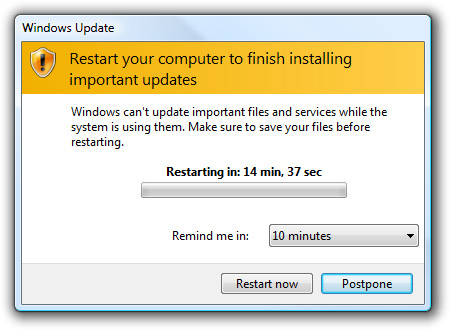
Before we get started, i would like to state, that this should only be used for an emergency situation. It’s a bad practice to use this for production machines, however we have all been in the situation where we just CANNOT reboot. (especially if you have yet to move to server core)
What this does
When Windows Update installs patches that need a restart, it records that state in the registry and keeps nagging (or counting down) until the machine reboots. Removing the RebootRequired key and restarting the Windows Update service clears that flag so the prompt goes away for now. It does not finish installing anything: the updates stay half-applied until the next real reboot, so schedule one as soon as you can.
Prerequisites
- A local administrator account (the registry key is under HKEY_LOCAL_MACHINE).
- A plan to reboot later. This only buys time.
Step 1: Back up and delete the RebootRequired key
here’s what we do:
open up the registry editor “regedit” from a command prompt:
navigate to the following registry key:
HKEY_LOCAL_MACHINE\SOFTWARE\Microsoft\Windows\CurrentVersion\WindowsUpdate\Auto Update
delete the key folder named “reboot required” and delete the registry key.
The key is shown as RebootRequired under Auto Update. Before deleting it, right-click Auto Update and choose Export so you have a .reg backup. The same thing from an elevated command prompt:
reg export "HKLM\SOFTWARE\Microsoft\Windows\CurrentVersion\WindowsUpdate\Auto Update" C:\temp\autoupdate-backup.reg
reg delete "HKLM\SOFTWARE\Microsoft\Windows\CurrentVersion\WindowsUpdate\Auto Update\RebootRequired" /f
Step 2: Restart the Windows Update service
from there open the local computer “services”
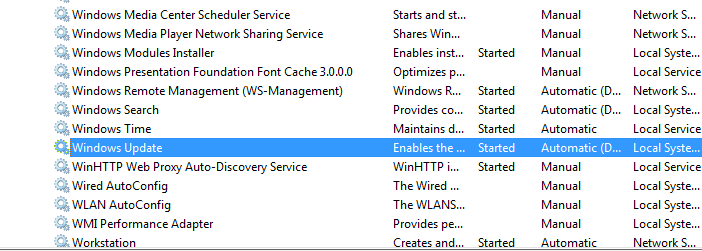
right click, and restart windows update.
From the command line the service name is wuauserv:
net stop wuauserv
net start wuauserv
or in PowerShell: Restart-Service wuauserv
Verify
Query the key again. If it is gone you will get “ERROR: The system was unable to find the specified registry key or value”:
reg query "HKLM\SOFTWARE\Microsoft\Windows\CurrentVersion\WindowsUpdate\Auto Update\RebootRequired"Troubleshooting
- The prompt comes back. Windows Update can recreate the key the next time it runs a detection or install cycle. Delete it again or, better, get the reboot scheduled.
- Access denied when deleting. Run regedit or the command prompt with “Run as administrator”.
- Other pending-reboot flags. Windows also tracks pending restarts in other places, for example
HKLM\SOFTWARE\Microsoft\Windows\CurrentVersion\Component Based Servicing\RebootPending. Leave those alone; they belong to component servicing and file rename operations that must complete at boot.
A better long-term fix
For servers that must not restart on their own, control it with policy instead of registry edits: in Group Policy under Computer Configuration, Administrative Templates, Windows Components, Windows Update, configure automatic updates to download and notify (or enable “No auto-restart with logged on users for scheduled automatic updates installations”), then patch and reboot in a maintenance window. On Server Core, sconfig lets you set Windows Update to manual.
Related guides: Install Windows Updates on Server Core | Reboot Windows Server Core