
CUPS can be cranky sometimes. When a queue hits a problem, CUPS stops (disables) the printer so the jobs pile up instead of disappearing, and nothing prints until someone enables it again. This guide shows how to find a disabled printer, enable it, disable one on purpose, and work out why it stopped.
Why CUPS disables a printer
- The original note here mentions the 500-job limit:
MaxJobsin/etc/cups/cupsd.confdefaults to 500, and once it is reached new jobs are rejected, which is a sign something upstream is stuck. - The most common cause is a backend error (printer offline, network timeout, paper jam reported over SNMP/IPP). With the default
ErrorPolicy stop-printer, CUPS stops the queue when a job fails. - An administrator ran
cupsdisablefor maintenance and never re-enabled it.
Prerequisites
- Root (or an account in the CUPS admin group such as
lp/sys, depending on the distribution) on the CUPS server. - The printer name as CUPS knows it, which
lpstatshows.
1. List the printers
Do an lpstat -a to get a list of printers and whether each queue is accepting jobs:
lpstat -a
Accepting and enabled are two different states: a queue can accept new jobs while the printer itself is stopped, which is why jobs keep piling up.
2. Check whether the printer is enabled
Now add the -p option to check if the printer is enabled:
lpstat -a -pA stopped queue reads printer NAME disabled since …, usually followed by the reason, while a healthy one reads printer NAME is idle. enabled since ….
Enable a CUPS printer
Ah ha! LexmarkT520 is disabled, so run cupsenable {printer-name}:
cupsenable LexmarkT520
lpstat -a -p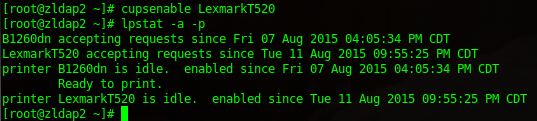
Yay, it’s working again. Queued jobs start printing as soon as the printer is enabled. If the queue is also rejecting jobs, run cupsaccept LexmarkT520 as well.
Disable a CUPS printer
To stop a printer without deleting it (toner change, maintenance, a printer being moved), disable it and leave a reason other users can see:
cupsdisable -r "Toner replacement" LexmarkT520
lpstat -p LexmarkT520
Jobs submitted while it is disabled are held in the queue and print once you run cupsenable. To stop the queue from accepting new jobs at all, use cupsreject -r "reason" LexmarkT520. Adding -c to cupsdisable cancels the jobs already in the queue.
Verify and troubleshoot
lpstat -tprints everything at once: scheduler status, default destination, device URIs, accepting/enabled state and queued jobs.lpstat -o LexmarkT520lists the jobs waiting;cancel -a LexmarkT520clears them if a bad job keeps stopping the queue.- If the printer disables itself again right after
cupsenable, the backend is still failing. Check/var/log/cups/error_logfor the reason, ping the printer, and confirm the device URI withlpstat -v.
Modern equivalent (RHEL, AlmaLinux, Rocky 9 and 10)
The commands are identical on current CUPS. The service is managed with systemctl status cups and systemctl restart cups, and recent scheduler messages are available with journalctl -u cups in addition to /var/log/cups/error_log. If you prefer a browser, the CUPS web interface on port 631 has the same Resume/Pause Printer actions; see Resume CUPS Printer command line CentOS 6 for a related walkthrough.
Related guides: Share CUPS UNIX printer with Windows IPP | Configure CUPS Web Interface for SSL CentOS 6