
SFTP Chroot Jail CentOS 6
SFTP Chroot Jail CentOS 6
In this blog we are allowing ONLY SFTP and not SSH. Basically the only purpose of the server is going to be for SFTP. SFTP is setup as a sub-component of SSH on nearly all linux distributions, so chances are you have all packages installed already, you just need to customize them for this instance. Let’s get started, login, and su to root

the first thing we need to do is setup a directory structure that supports sftp:
/sftp –> username –> incoming
basically we are going to create a directory in the root filesystem, (for production you should create a seperate partitino) called /sftp, in there we are going to configure the system to automatically create users in this directory, once the user directory has been created, then we can create the incoming inside of it, this is going to be the jailed directory.
from here we need to modify the system to create new local users in the /sftp directory, to do so, modify the default user config
modify lines 3 and 6 to match as follow:
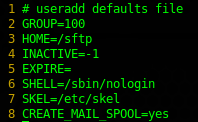
basically the default directory where sftp directories are being created is /sftp, and the default shell is /sbin/nologin (otherwise they will have shell access, this may not be desired)
now we need to create a local SFTP group

now we need to create our sftp user(s)

so in this example, we are adding a user to the group sftp with the destination of /sftpchrootdir with the /sbin/nologin for the user sftpuser1
now we need to set a password for this particular user:

double-check your user was created successfully:
now we need to create the sftpuser’s home directory+chroot directory

Configure ssh for SFTP Chroot:
edit the sshd config in /etc/

comment out line 132 and add line 133

now we need to specify that users of a specific group should be chrootjailed, go to the tail end of the sshd_config file, and add the following:

so as shown, if the user is in the sftp group, use the ChrootDirectory of /sftp/%u (stands for username), and force the above to use internal-sftp.
Save+quit, restart ssh daemon
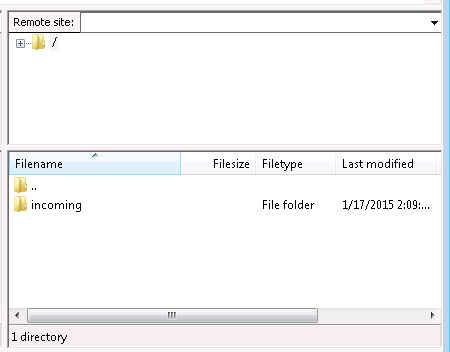
now if you try to connect using FileZilla to the server via sftp, you should get the following:
if you try to type the path of /home int he remote site, you should get “no such file or directory”

Now to take this to another level, here’s a script to create a new SFTP user, as it’s quite the process:
- touch scriptname.sh
- chmod +x scriptname.sh
- copy/paste below code:
#!/bin/sh
# Created by Zwiegnet Linux Admins 12/17/2015
# Version 1.5
# Create SFTP User Based on Blog Post
echo =======================================
echo SFTP Creation Script by Zwiegnet LLC
echo =======================================
####################
# Define Variables #
####################
echo enter user to create and hit enter
read USER
echo enter existing SFTP group and hit enter
read GROUP
############
# Add User #
############
useradd -g $GROUP -d /incoming -s /sbin/nologin $USER
################
# Set Password #
################
echo create password for $USER
passwd $USER
###########################
# Create SFTP Directories #
###########################
mkdir /sftp/$USER
mkdir /sftp/$USER/incoming
chown $USER:$GROUP /sftp/$USER/incoming
echo new SFTP User $USER Created!
./scripname.sh
That’s it!
You have successfully configured SFTP on CentOS 6, enjoy secure file transfers!
Related guides: Configure SSH Key Authentication Only | Configure FTP Server CentOS 6