
Setup Webmin For Gmail
So you want to be cool, and host your email with gmail? here’s the tutorial you will need to get it setup if your web control panel uses Webmin.
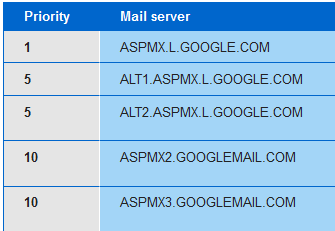
Piece of cake, i searched everywhere on the internet but could not find out how to do this properly, so i just figured it out, and want to tell you guys how to do it as well. Print out the Email that Looks like this, that you get from Google with the Name servers, or go to the following link to get the name servers:
http://support.google.com/a/bin/answer.py?hl=en&answer=174125
it should look like this
log into your Webmin web control panel, go to BIND/DNS, find your domain; and go your “mx records section” it should be under the icon that shows as follows:

so say we want to add gmail to our mail servers, here’s what we have to do.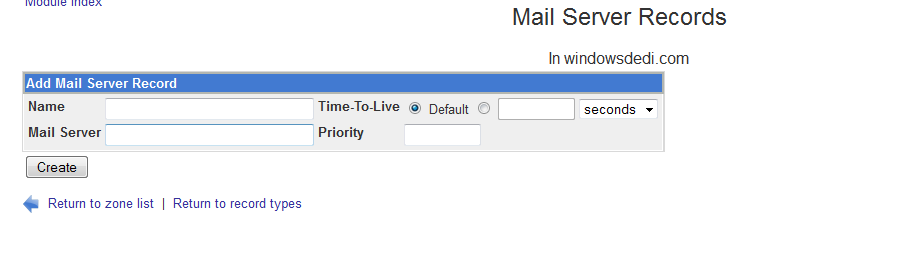
you should be prompted with the following screen for your domain, in this case we are going to use “windowsdedi.com”
type in your first email server aspmx.l.google.com with the priority of 1 (be aware that the priorities are different, please use Google’s priorities.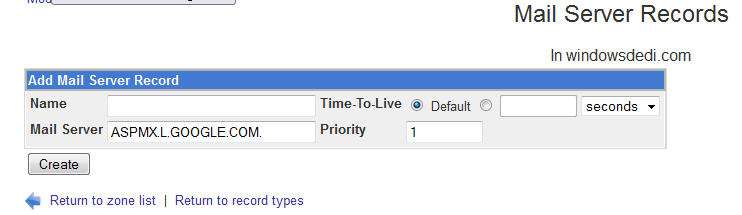
DO NOT put anything into the “name” field, you can leave that black, and it will fill out the settings for you. Go Ahead and hit create once you have the necessary information entered
the record should appear below as shown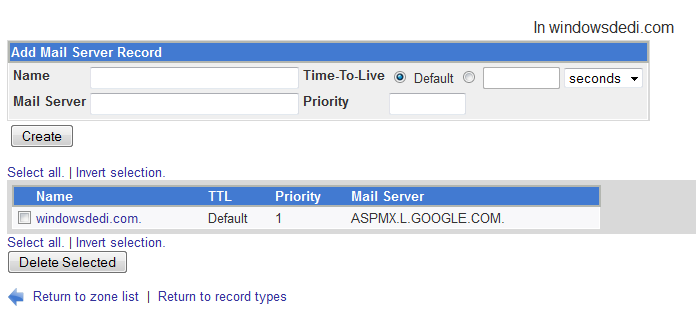
fill in the rest of the gmail settings so that all are filled in.
it should look as follows once all information is filled in, MAKE SURE THAT YOUR PRIORITIES ARE SET CORRECTLY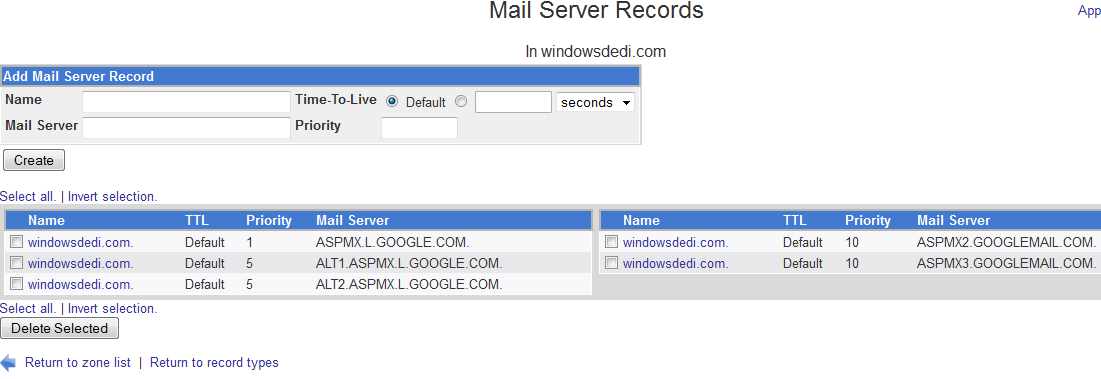
Hit “apply configuration” and then hit “apply zone” (do not skip this step)
from here all we have to do is test and see that it’s setup properly in dns, so go to www.pingability.com
enter your domain name, and it will query your DNS to see if everything is setup correctly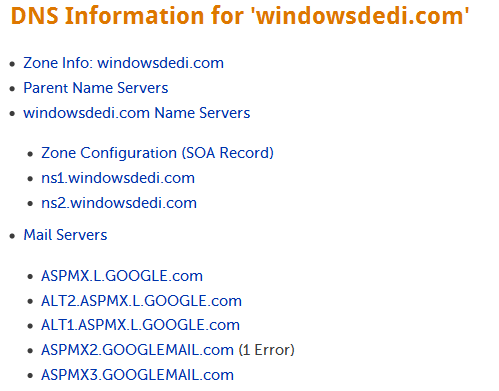
as you can see, it sees all of our gmail servers are in there and are ready to go (note that ASPMX2 sometimes has an error)
That’s IT! you are set. If you would like DNS Hosting, or Hosted Email, visit www.zwiegnet.com/go to get started today. Thanks for reading my article!
Related guides: Install Webmin on CentOS 6.3 | Installing Webmin On CentOS 6