
Need some basic information about a Windows server or PC without opening Performance Monitor? The built-in net statistics command prints counters for the Server service, which handles SMB file and printer sharing. It is available on current and older versions of Windows and Windows Server.
Run the command
Open a Command Prompt (it doesn’t have to be elevated) and type:
net statistics server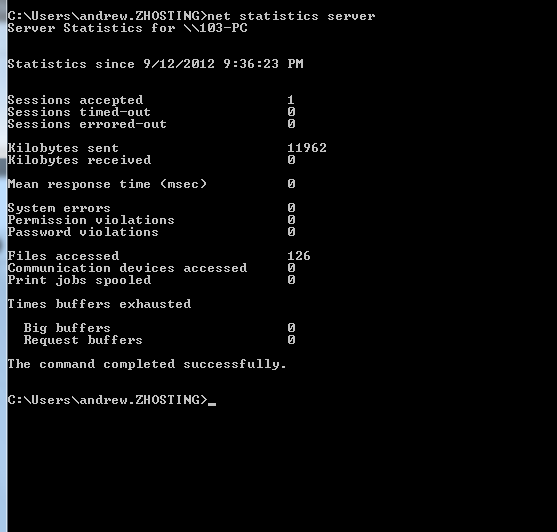
What the output means
- Statistics since: when the counters started. That’s when the Server service last started, which is usually the last boot, so it’s a quick way to check uptime.
- Sessions accepted / timed-out / errored-out: SMB client sessions opened to this machine.
- Kilobytes sent / received: SMB traffic served since the counters started.
- Mean response time: average response time to SMB requests, in milliseconds.
- System errors, permission violations, password violations: failed requests. A climbing password-violation count is worth looking into.
- Files accessed, communication devices accessed, print jobs spooled: how much the shares and printers are being used.
- Times buffers exhausted: non-zero values point to memory pressure on the Server service.
Client-side statistics
To see the same kind of counters for outgoing connections from this machine to other servers, use:
net statistics workstationUptime the precise way
“Statistics since” resets if someone restarts the Server service. To get the real boot time, use:
systeminfo | find "System Boot Time"Or in PowerShell:
(Get-CimInstance Win32_OperatingSystem).LastBootUpTimePowerShell equivalents for SMB details
On Windows Server 2012 and later, the SMB cmdlets show who is connected and what they have open:
Get-SmbSession | Select ClientComputerName, ClientUserName, NumOpens
Get-SmbOpenFile | Select ClientUserName, Path
Remote servers
net statistics only reports on the local machine. For a remote server, run it over PowerShell remoting:
Invoke-Command -ComputerName FS01 { net statistics server }That’s it. One command gives you a quick health check of any Windows file server.
Related guides: Reboot Windows Server Core | Finding the MAC address of a remote computer