
Configure TLS/SSL 389 Directory Server CentOS
Configure TLS/SSL 389 Directory Server CentOS
389 Directory server is an amazing MultiMaster LDAP solution. Out of the box 389 is not configured to use TLS/SSL, so we are going to walk through the setup process. Please note, that we are using this as a test, so we are using a self-signed certificate, but the directions should work for both scenarios.
login, and su to root

Generate the Self-Signed Certificate:
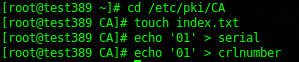
change to the necessary directory, and setup a few files for the CA
now generate the key/certificate

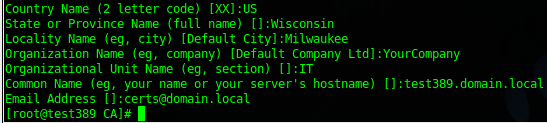
setup your certificate as appropriate
set permissions on the cert key

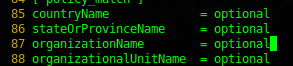
now we need to make sure certificate matching is disabled (unless you are using a full cert)

modify lines 85-88 as follows:
Generate and Self-Sign Certificate
launch the 389-console
open the directory server you were just working on, and click “Manage Certificates”
Servername –> Directory Server –> Manage Certificates

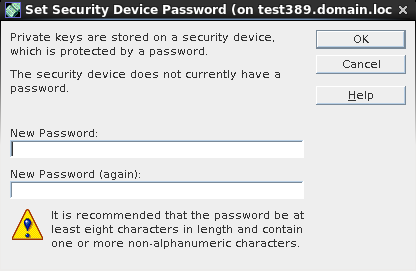
set, and REMEMBER the 1st time password
Under Server Certs, click “Request”
This step, select request manually
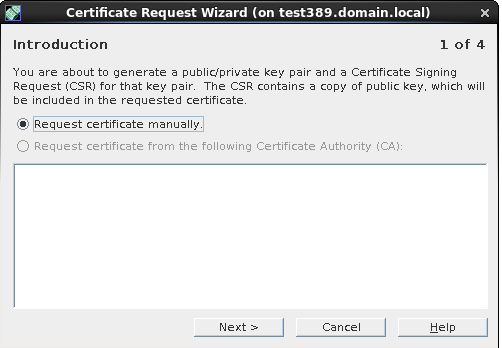
fill out the request wizard as follows:
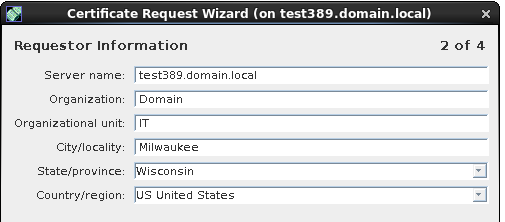
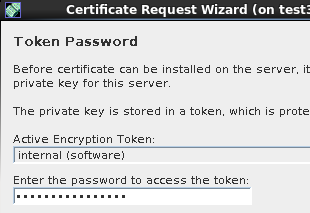
enter a “token password” for the certificate
now save to file
/tmp/test389.domain.local.csr
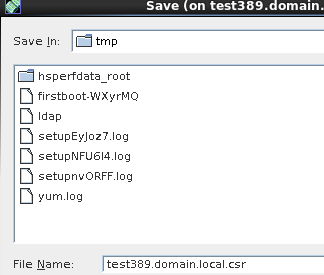
click save, and then done.
now move the CSR to a usable directory within the CA

Authorize the Cert with the CA
openssl ca -in /etc/pki/CA/crl/test389.domain.local.csr -out /etc/pki/CA/newcerts/test389.domain.local.crt -keyfile /etc/pki/CA/private/ca-cert.key -cert /etc/pki/CA/certs/ca-cert.crt
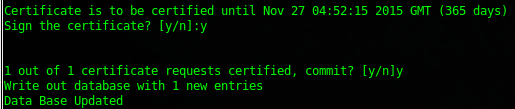
you should see the following, if not double-check your steps
Install/Enable Certificate 389 Directory Server
launch the 389-console
Login to Directory Server –> Manage Certificates
The first thing you want to do is install the CA Cert from the CA Cert Tab
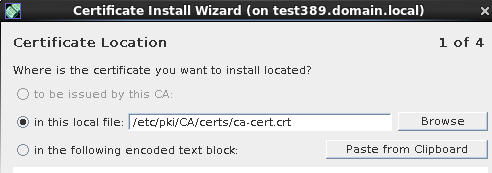
hit next
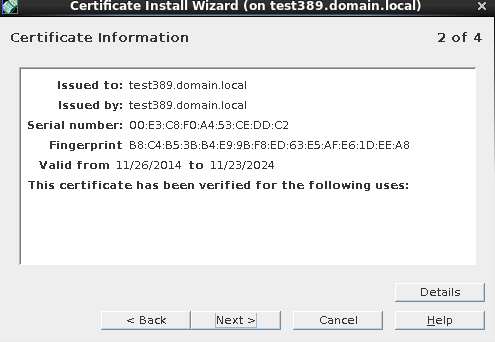
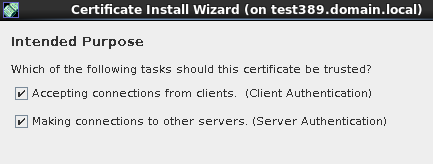
now our CA Cert is installed
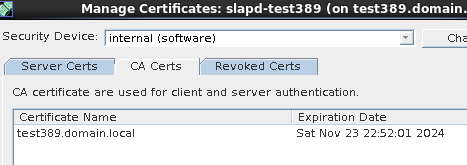
now we need to install our Server Cert from the Server Cert Tab
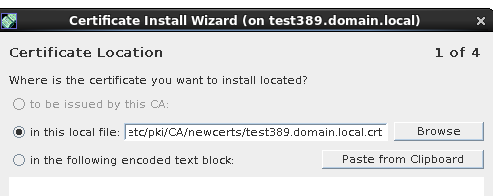
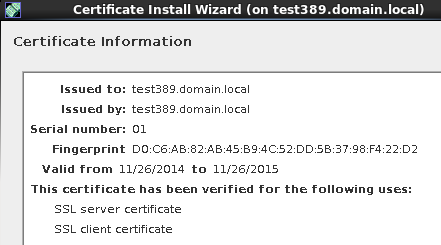
next
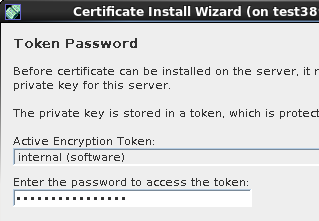
enter the password from earlier when you were creating the CSR
Bam! Installed
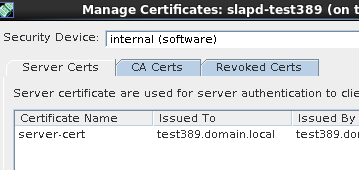
Enable Server Encryption
Directory Server –> Encryption

** MAKE SURE TO SAVE YOUR CONFIGURATION!!! **
Enable PIN For Directory Service Restarts
389 requires a “pin” or password for the certificate in order to start encryption when the server restarts, here’s what we need to do to configure that:
create a PIN File
enter the certificate password into the PIN file

change permissions on the PIN file so only root can read it

now restart the directory service to be sure, if there’s an error, the service will not start
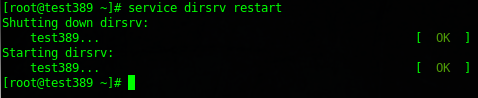
That’s it! You have configured TLS/SSL On 389 directory Server
To configure a Secure TLS LDAP Client, click here
Hosted Linux Servers at www.zwiegnet.com/go
1 Comment