
Move Pagefile to Another Drive Windows
This process will work for Windows 98, 2000,ME,XP,Windows 7, Windows 8, Windows Server 2003, Server 2008 so on, and so forth, the process hasn’t changed in years.
go to your computer properties, either in the control panel, or right-click my computer/computer and go to properties; you should see the following:
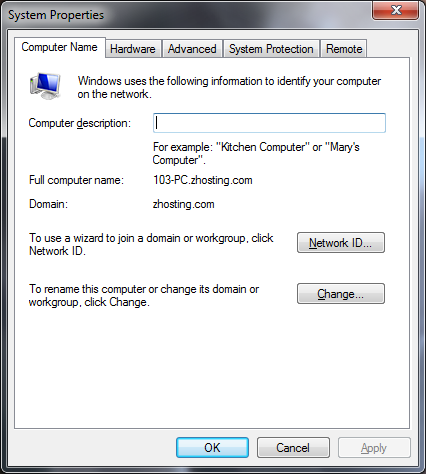
from there, select the “advanced” tab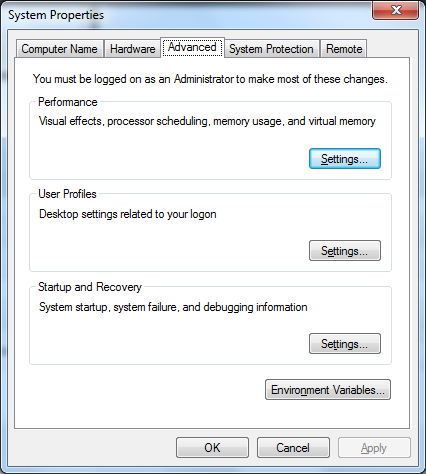
Click settings under the performance area
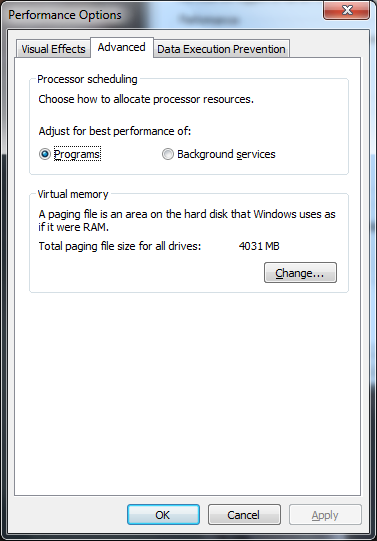
change to the advanced tab again, and in the virtual memory, hit the “change” button.
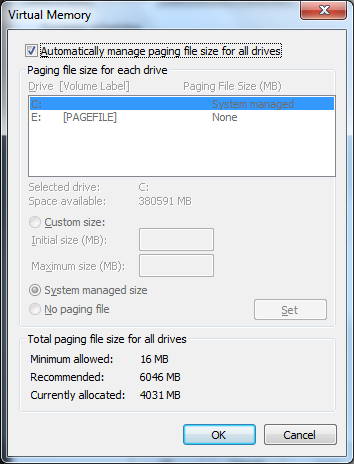
Un-select “automatically managed page-file for all drives” as you can see, presently the pagefile is on the C:/ drive, select it, and change the radio button to say “no paging file” and then click “set” to set the setting.
from there set the page file for the D/E drive by selecting the drive, and hit “system managed size”
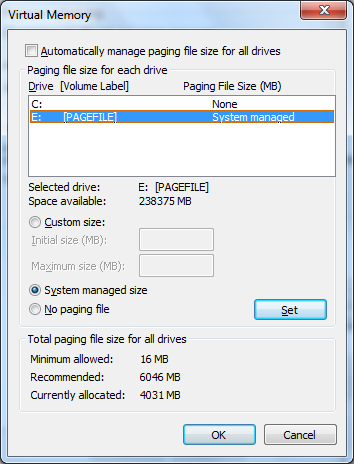
it should look as follows.
from there, reboot, and you should see your pagefile take on some space in your secondary hard drive.

Note: the pagefile will always be figured out by the system based on this equation:
amount of ram x 1.5 = pagefile size
ex: 4GB RAM x 1.5 = 6GB Page File
That’s it! Thanks for reading my blog post!
Related guides: Move WSUS to another Hard Drive | Move Windows Deployment Server To Another Hard Drive