
Install Oracle Express Oracle Linux 6
Install Oracle Express Oracle Linux 6
Preparing Oracle Enterprise Linux
Disk/Swap Setup
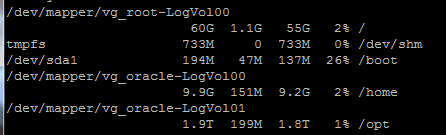
As you can see we have root VG for the OS (60GB)
/home Volume Group for user accounts (10GB)
And /opt (where oracle installs, we have allocated 1.9TB in this instance)
** You Also NEED at least 2GB of Swap Space to install Oracle Express ***
Yum –y update (make sure your kernel is up to date)
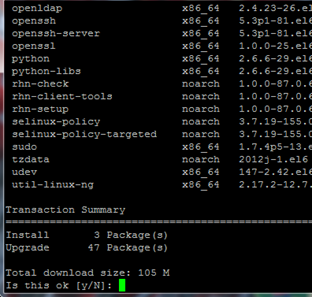
By Default there is a lot of packages missing from OEL
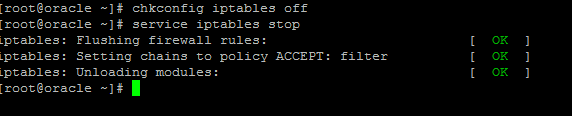
Stop and Disable the Firewall on startup
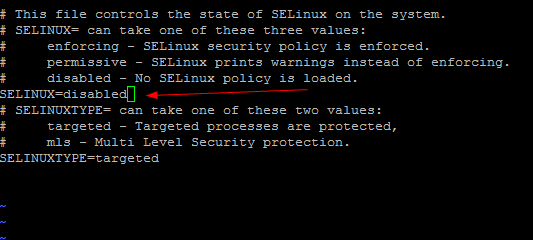
Stop and Disable SELinux
Vi /etc/selinux/config
Reboot once all Kernel, SELinux, and Firewall Tables Changes have been made
Installing Oracle Express 11gR2
Search for the Pre-Install with “yum search oracle-rdbms-server-11gR2-preinstall
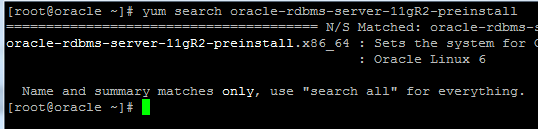
Install it with “yum install oracle-rdbms-server-11gR2-presinstall”
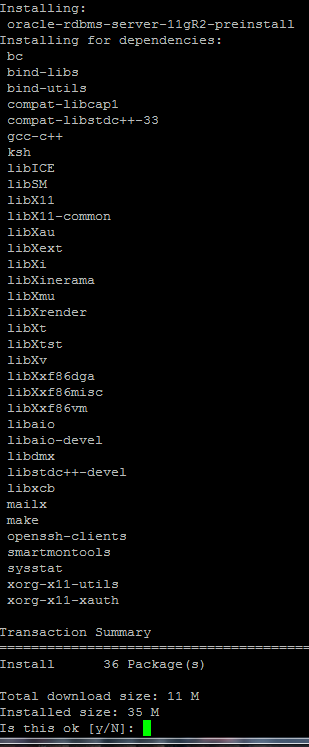
Lots of dependencies
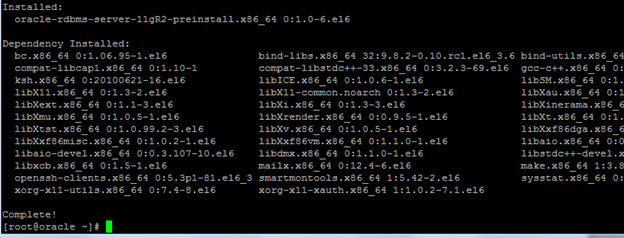
Done!
*** Create a SYMLINK for the path to be re-directed to /opt ***
Ln –s /opt /u01
CD to the NFS Directory Where Oracle Is Stored (or download fresh from oracle.com)

Rpm –ivh for the rpm package
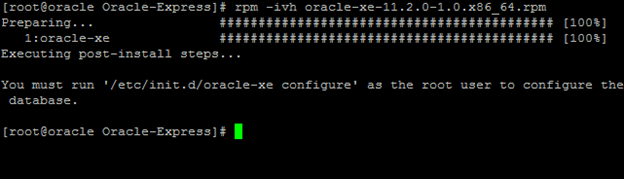
If all goes well, we should get this, follow the prompt
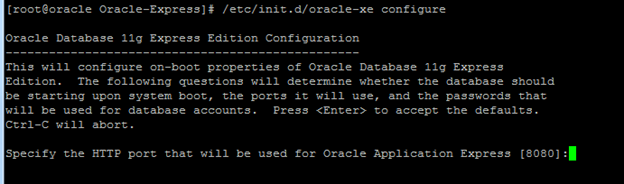
Go with the defaults for all, by hitting enter
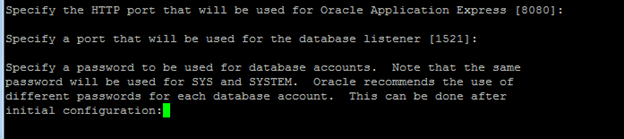
Enter a SYS or SYSTEM password
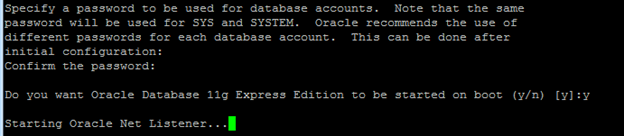
You more than likely want this to start on boot
It will sit on “Starting Oracle Net Listener” “and Configuring database….” For a few minutes

Done!

Total Disk Space:
1.7GB (can use command du-sh /* to find out the space)
Now we just need to allow remote access

Cd /u01/app/oracle/product/11.2.0/xe/bin
Username: system
Password: password specified in the setup earlier
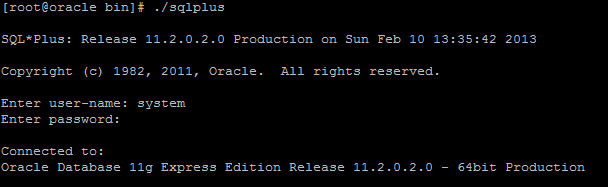
Issue the following SQL command:
Now go to “serverip:8080” (or whatever port specified)
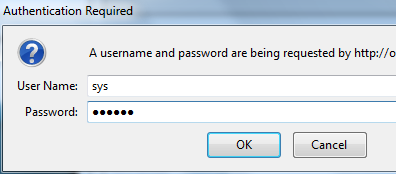
Enter the Sys password
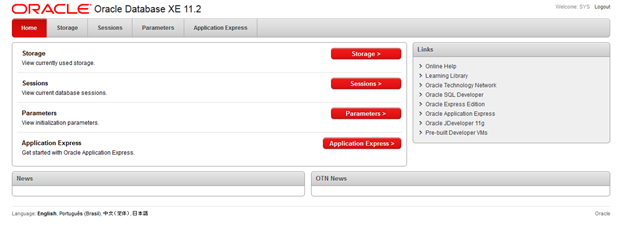
Viola!
Ready to Start Using Oracle XE 11.2,Exit is the command to exit Oracle.
That’s it!
To Get a Hosted Oracle Linux Server visit www.zwiegnet.com/go today
Related guides: Mount SAN Volume Oracle Linux | Expand SAN LUN Oracle Linux 6