
Using IRC and IRSSI for Linux Support
Using IRC and IRSSI for Linux Support
IRC is often one of the greates assests to UNIX/Linux that gets overlooked. IRC or Internet Relay Chat, is the Defacto-Standard way of getting support for UNIX/Linux, and is often overlooked as a source of how to get live answers quick.
Internet Relay Chat (IRC) is an application layer protocol that facilitates transfer of messages in the form of text. The chat process works on a client/server model of networking. IRC clients are computer programs that a user can install on their system.
In Linux, the IRSSI is the standard (although there are many other clients) that is used for Internet Relay Chat, or IRC.
Basic Usage:
Let’s get staretd, Login, and su to root

install the irssi client, for redhat use yum, debian use apt-get
once installed, switch back to a standard user account, since root privileges are no longer necessary.

** EACH CHAT ROOM HAS IT’s OWN RULES AND REGULATIONS, YOU ARE EXPECTED TO HAVE READ THEM BEFORE, AGAIN, BEFORE YOU LOGIN, IF YOU DO NOT, YOU MAY NOT UNDERSTAND WHAT’S ACCEPTABLE, OR NOT, THEREFORE MEANING YOU MAY NOT GET AN ANSWER BECAUSE YOU DID NOT FOLLOW THE RULES ** REMEMBER, THESE PEOPLE ARE VOLUNTEERING THEIR FREE TIME TO HELP YOU, BE RESPECTFUL!!!!
launch the irssi client by typing the irssi command

you should see a window similar to the following:
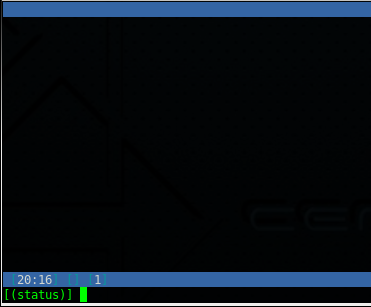
It’s important to understand that there are many IRC servers out on the internet, and within those servers, there are many chanels, that’s why you are brought to this screen by default, because you have to connect to one of the millions of IRC servers before you can do anything.
A popular server is chat.freenode.net, we will start here, type the following:

you shoudl see the following:
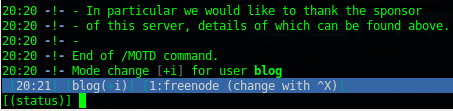
this will stay like to for a few seconds, and then go to the “MOTD” or message of the day.
before we log into any chatrooms, we need to setup a chat Nick (short for nickname) type the following (customize the nick name)

hit enter, you should see the following (again be smart, substitute your own nickname)

so…. at this point we have connected to the chat Server, set a Nick, but not logged into any chat Rooms. You must use the join command to log into a chat room, like so:

all chat rooms are generally named #something, such as #cacti, or #samba
you should see something similar when you join a chat room:

from here is where you can normally ask, and get the answers to questions you are looking for.
once joined, there are a few things to take note of:

1) Your nick shows up
2) the 2 = irssi window 2, hit ALT+1 to go back to main window, alt+2 to go back to this window
3) you are logged into the freenode server, in the ##linux chat room
To Leave the chat room, type the following:
/part will close the chat room (think of it as parting ways)
/save will save some of the presently configured settings

to Quit out of the IRSSI Application, type /quit

Advanced Usage:
if you plan on using IRC frequently what we have above is a good start for the occasional user, however, some of us work with UNIX/Linux and need to be able to get a bit more granular.
Each time we logout/log back in, our chat windows are lost, and the server we log into. Wouldn’t it be nice if we could make it Automated, so it launched, connected, and signed into all chat rooms? You are in luck… we can, it’s Linux, where there’s a shell, there’s a way.
start this whole thing off by using SCREEN, if you are not familiar with screen, click here
Basically start a screen session, the idea is to leave the session running, and come back to it when you want to look at your chat windows, usually in an emergency 

you should notice the following, if not similar

from here we need to register our NIC for the longterm, so nobody can take our nick while we are logged out.
connect to the server you want to register your nick at

once connected, to register your NIC, first you need to set your nick, as it more than likely did not save

from here we need to register the password for the longterm

you should recieve an email with your verification code, now we need to verify the code against the server

from here we should be good with our Nick.
Setup Servers/Chat Windows to be remembered:
This is pretty cool, the first thing we need to do is add our network(s) to the list to be remembered, we can do so with the following syntax:

if you want to connect via SSL (more than likely you do) issue the following:

freenode allows the following ports for SSL: 6697 7000 and 7070
if you have the need to verify the cert, check here
ok, so now we have our network added securely, we can view/remove with the following commands:
/network list {name}
/network remove {name}
We also need to setup irssi to load your Nick by default

you should see the following:

once the network is added, this is really only the server, now we need to add the channels to be auto-remembered so they can be logged into by default, let’s setup chat rooms

this adds as many chat rooms in the order you enter them to be added, like before the syntax is List/Remove/Add
/channel list
/channel remove {channelname}
after the work has been completed, hit save

now quit, and test that everything worked properly

you should see your window auto-connecting to the network defined as freenode

In the status window, you should also see that you have been joined to the various chat rooms, or channels by default

Busy Channels:
if you are on a busy channel, you will see alot of “so and so person joined” and “so and so person left”
to disable these messages, and have the irssi window to a minimal of chats, issue the following command, on a per-chat room basis:

always remember to do a /save when making changes
Navigating Multiple Windows/Channels:
IRSSI allows up to 19 channels to be working at once, this is great!
There are 2 ways to navigate through windows 1-10:
1) ALT + 1-9
2) ESC + 1-9
For channels higher than numbers 1-9, you must type the command /win list

/win 11 (to change to window or channel 11)
Additional Command Reference:
There is a great reference for additional commands that can be used for IRC/IRSSI, please check these out, as it will make your life sooo much easier.
http://www.godspeak.net/chat/basic_irc.html
That’s it!
Hosted Linux Servers at www.zwiegnet.com/go