
Configure FTP over SSL CentOS
Configure FTP over SSL CentOS
For Public FTP communications, it’s no longer a good idea to run just normal FTP, as there are some security risks. How do we make a secure Public facing FTP Server, use SSL of course! This method is for Explicit FTPS over TLS Linux, and assuming you are behind a NAT
Make sure to port forward ports 990-991 and 10000-11000 for FTP Transfers/passive mode.
Login as root

from here we are going to setup our certificates

generate the certificate, here customize the days, and the rsa encryption value

You may want to note that the default security is RSA:1024, you can increase the number to have a more secure session (it will just take longer to authenticate)
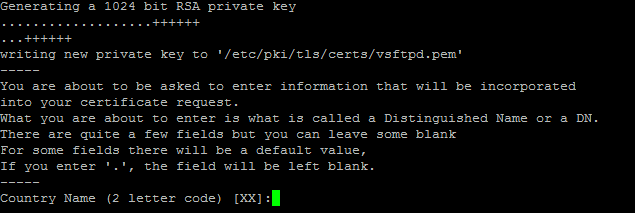
fill in the info as necessary to your organization (it’s what will show up on the SSL Cert)
here’s a final look:

Now we need to set security on the certificate
from here we can configure VSFTPD (Very Secure FTPD)
first we will install

start the service, and enable for bootup (you may want to make a copy of vsftpd.conf before you proceed)

here’s the config file:
# SSL FTP By Zwiegnet Linux Admins
anonymous_enable=NO
local_enable=YES
write_enable=YES
local_umask=022
dirmessage_enable=YES
xferlog_enable=YES
connect_from_port_20=NO
listen_port=991
xferlog_std_format=YES
ftpd_banner=Welcome to Zwiegnet FTP
listen=YES
pam_service_name=vsftpd
userlist_enable=YES
tcp_wrappers=YES
chroot_local_user=YES
chroot_list_enable=NO
# Max Rates
max_clients=10
max_per_ip=2
# Passive Mode
pasv_address=192.168.1.xxxx
pasv_enable=YES
pasv_min_port=10000
pasv_max_port=11000
pasv_promiscuous=YES
# SSL Stuff
rsa_cert_file=/etc/pki/tls/certs/vsftpd.pem
ssl_enable=YES
allow_anon_ssl=NO
require_ssl_reuse=NO
force_local_data_ssl=YES
force_local_logins_ssl=YES
# Makes FileZilla work
ssl_ciphers=HIGH
Restart VSFTPD once the correct information is filled in

Connect Via Windows:
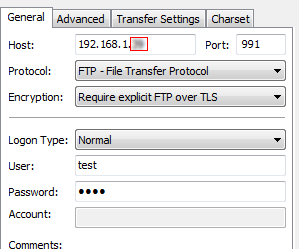
test by Configuring Filezilla (create a user/password to use ftp obviously)
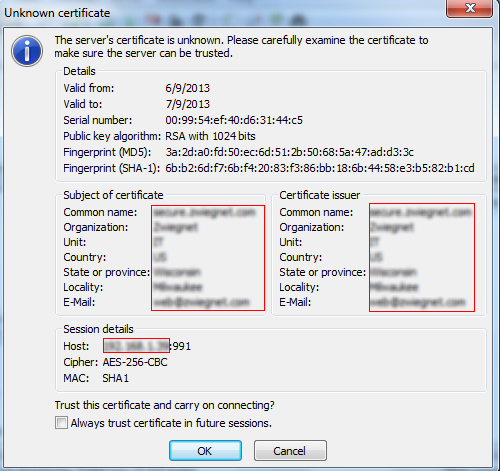
you should see a self-signed certificate error, hit OK if you trust this source
Done!
Connect Via UNIX/Linux:
the CURL utility has ENDLESS uses, this is one of them:
List Files:
curl –ftp-ssl –insecure –user “username:password” ftp://ftp.server.com:991
Upload File:
curl –ftp-ssl –insecure –user “username:password” -T test.txt ftp://ftp.server.com:991
Download File:
curl -o filename –ftp-ssl –insecure –user “username:password” ftp://ftp.server.com:991
Automated Script to Download ALL Files:
** This is another example of where UNIX/Linux Trumps windows **
#!/bin/sh
# Created by Zwiegnet Linux Admins 1/31/2015
# Version 7.8
# Download all files with .txt extension from remote FTPS Server
###################################
# Define Variables for FTP Server #
###################################
USER=”ftpusername”
PASS=”ftppassword”
FTPSERVER=”ftp.domain.com”
PORT=”991″
LOCALDIR=”$HOME/FTP”
######################################################################################
# For loop to determine file names in FTP Directory, and then Download each of them. #
######################################################################################
cd $LOCALDIR
echo Downloading Files…..
FILES=”$(curl -l –ftp-ssl –insecure –user “$USER:$PASS” ftp://$FTPSERVER:$PORT)”
for f in ${FILES}
do
curl –ftp-ssl –insecure -O -u “$USER:$PASS” ftp://$FTPSERVER:$PORT/$f
echo $f
done
################################
# Delete Files Once Downloaded #
################################
# Because not everyone is smart, and blindly executes code, I have commented this useful part out.
#echo Deleting Old Files….
#FILES2=”$(curl -l –ftp-ssl –insecure –user “$USER:$PASS” ftp://$FTPSERVER:$PORT)”
#for f in ${FILES2}
#do
#curl -X “DELE $f” –ftp-ssl –insecure –user “$USER:$PASS” ftp://$FTPSERVER:$PORT
#done
#####################
# Completed Message #
#####################
echo FTPS Transfer Completed!
save it all into shell script, chmod +x, and schedule it in CRON
Automated Script to Upload all Files:
#!/bin/sh
# Created by Zwiegnet Linux Admins 2/7/2015
# Version 1.2
# Upload files via FTPS and remove from local directory
###################################
# Define Variables for FTP Server #
###################################
USER=”ftpuser”
PASS=”ftppassword”
FTPSERVER=”ftp.domain.com”
PORT=”991″
LOCALDIR=”$HOME/FTP”
#########################
# Do Not Edit Past Here #
#########################
cd $LOCALDIR
echo Uploading Files…..
FILES=$LOCALDIR/*
for f in ${FILES}
do
curl –ftp-ssl –insecure –user “$USER:$PASS” -T $f ftp://$FTPSERVER:$PORT
echo $f
done
##############################
# Delete Files Once Uploaded #
##############################
# Because People blindly execute scripts, I have commented out this part of useful code
#echo Deleting Old Files….
#FILES2=”$(curl -l –ftp-ssl –insecure –user “$USER:$PASS” ftp://$FTPSERVER:$PORT)”
#for f in ${FILES2}
#do
#rm -f $LOCALDIR/*
#done
That’s it!
To get a hosted FTPS Server visit www.zwiegnet.com/go to get started today
Related guides: Using curl with vsftpd FTPS (FTP Over SSL) | Configure FTP Server CentOS 6