
Mounting Windows Share on CentOS
alright, this is went through days of stress to figure out, but i want to put it out there right away so i don’t forget about it, and also so i can reference it in the future.
I ran across a lot of old, and out of date articles, so here’s a fresh one that will be enlightening, let’s cut to the chase, if we want to mount a windows share on a Linux box, it can be a bit tricky, but here’s how, login, and SU to root
for this example here are our varialbles
Windows Share: //192.168.1.105/Lbackups this is the share on the windows server that we will be mounting on the Linux box (we use IP because it works all the time, DNS sometimes fails)
Linux Box Name: Dev-CentOS
the first thing that needs to be done is go ahead and type the following command to install the samba client:
yum install samba-client
after that is done installing, install the CIFS-Utils by using the below command:
yum install cifs-utils
we have to next make a directory that the share will mount to, to do so, issue the following command:
mkdir /mnt/Lbackups
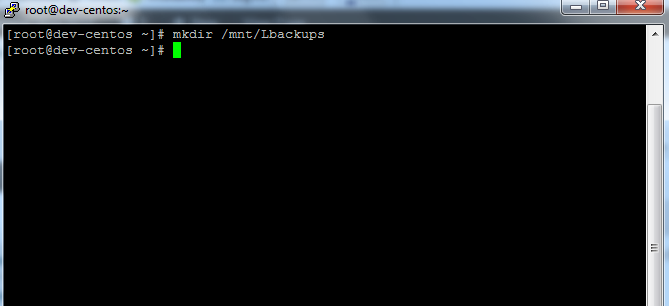
from here we need to go into our File System Tab, to do so, type
vi /etc/fstab
as you can see there is a NFS share already mounted, and an extra hard drive
we are going to add to this, go to the bottom, and add a note
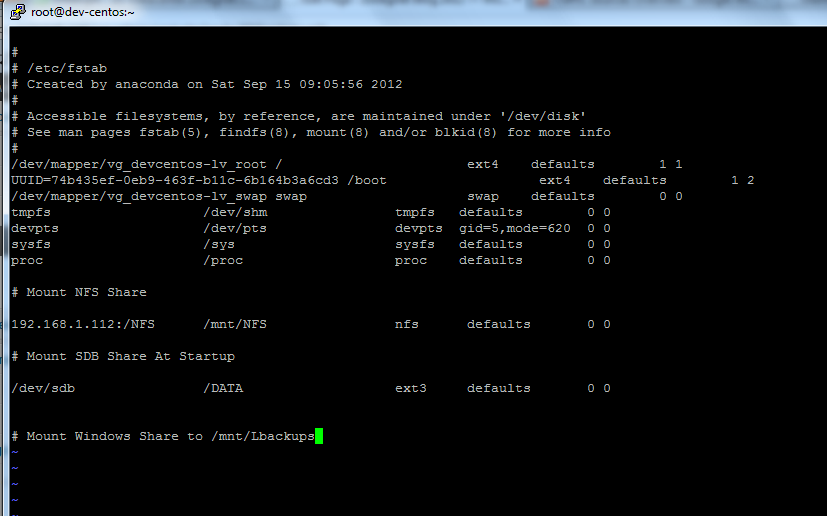
now add the following:

a couple of variables here
192.168.1.105 = the ip of the server you are mounting to
:/Lbackups = the name of the share you are connecting to
/mnt/Lbackups = where it will show up on the local system
cifs = filesystem type, a windows share on Linux is recognized as cifs
username/password= Active directory Username/Password that has permission to that share. I suggest using a service account for this
save and quit out of the fstab
from here there is one more command to make this all work
*** This command re-mounts ALL FILESYSTEMS on the Linux server, so be aware that there WILL be an outage after running this command ********
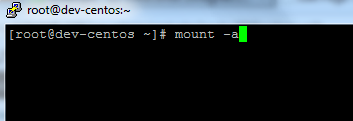
once ran you should be returned to the #
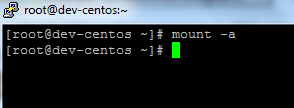
that means it mounted without errors, let’s check it out
cd to /mnt/Lbackups and do a “LS”

as you can see same folders here that are on the share
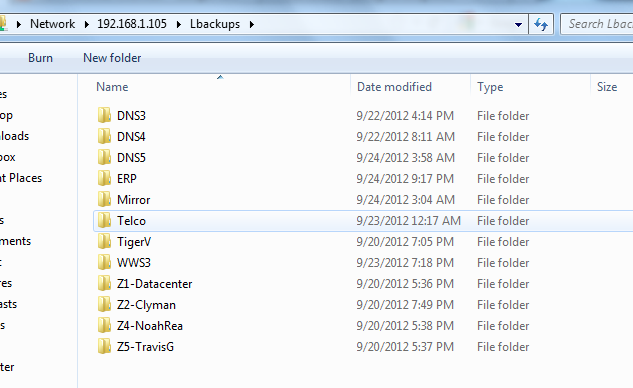
That’s IT! Hope that helps anyone that struggled with this as i did, if this saved you time or money, feel free to donate to keep this blog running below
if you want more help from Linux Experts, visit www.zwiegnet.com