
Configure Mount Point Windows
Configure Mount Point Windows 7, Server2008, Server2012
Mount points are extremely useful, this idea was borrowed from UNIX/Linux in the NT days. Mount points allow us to mount a block disk or device to a specific path in the filesystem, rather than have it be a seperate drive letter. This is extremely handy for applications that create a lot of logs, or need constant expansion, and storage such as Exchange and SQL Server, but SHOULD be used in preference to drive letters, as it’s alot more efficient.
Let’s get started, add a new raw block device to your VM via VMWare, XenServer, or if you are really foolish, “The Hyper-V”.
** Please note that like in UNIX/Linux you need to mount TO a blank folder **
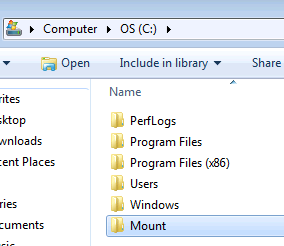
Open up Device Manager, and locate your new block device
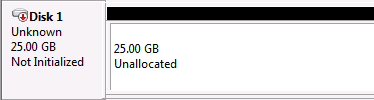
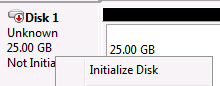
Right-Click and Initialize the disk (GPT, DUH)
from here right-click and create a new volume
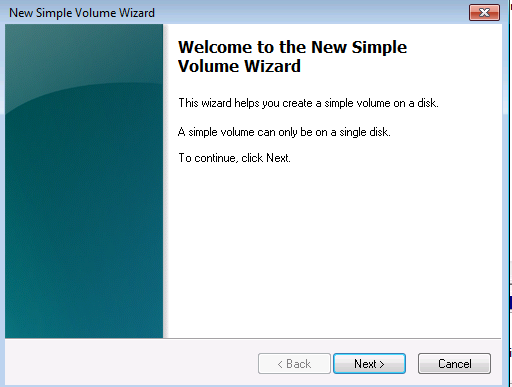
hit next
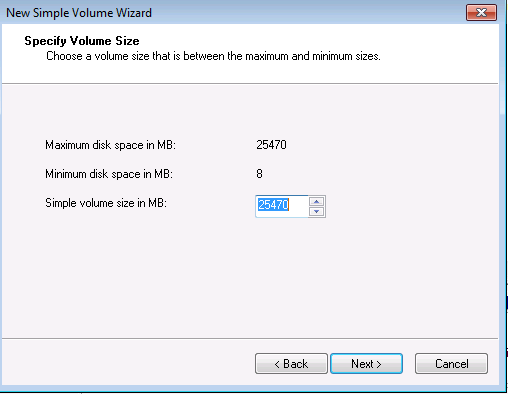
configure the volume size as necessary
** This is the Key Step **
Select the Blank folder that you made earlier named “Mount”
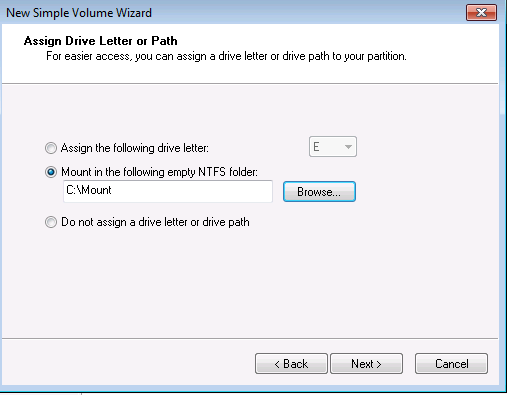
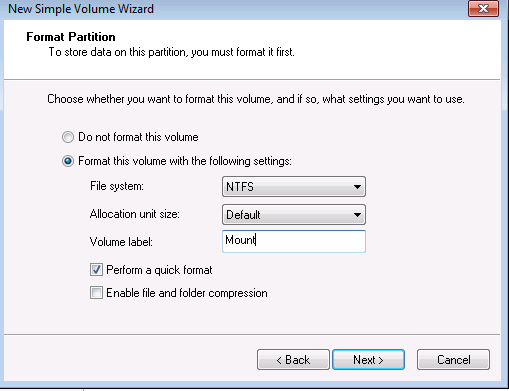
hit next, and format if there is no important data on the volume
verify you can get to your new mount via C:/Mount
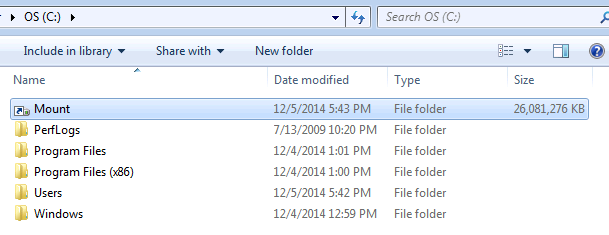
notice the size…..
now, you may say to yourself….. “that’s fine and dandy for the UNIX/Linux people, but can I make this a drive letter as well?”
Of course….. Go back to device manager, and find the block device, right click
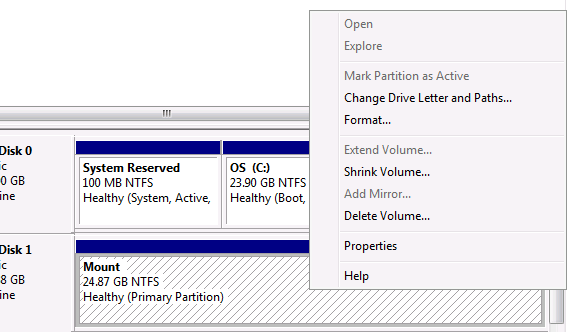
Select “Change Drive Letter and Paths”
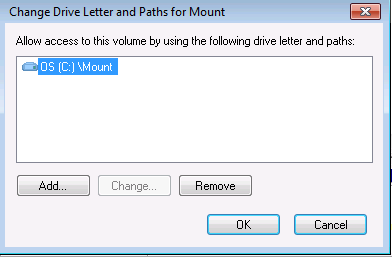
as you can see, this block device is mounted to C: Mount, now all we need to do is hit “add”
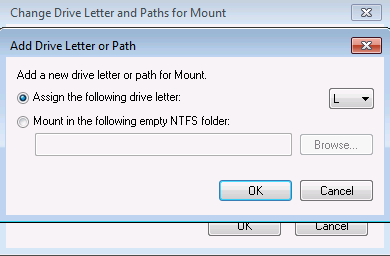
select the letter for the drive letter you would like to use
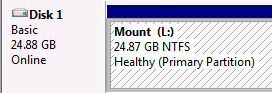
as you can see, your block device now has a drive letter, and can be accessed from both paths.
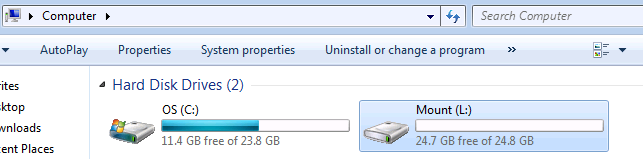
That’s it!
Today you have learned the PROPER way to mount disks on Windows. AND you have learned the basic concepts of how it works on UNIX/Linux.
That’s it!
Related guides: Add Another Hard Drive Server Core | Move Pagefile to Another Drive Windows