
Build RPM From Source
Build RPM From Source
Before proceeding, you should take a look at the following article. The below article is basic, and assumes you have some baisc knowledge of how package building works, and that you have done a configure/make/make install, and know how to debug it.
As mentioned above, please do not proceed without having a general idea of what you are doing. We are not responsible if you destroy a system because you didn’t take the time to understand what you are doing.
** Notes/Cultural Knowledge **
- use a local account “build” for this process, in case you need to escilate to root, you won’t have a root squashed NFS home folder
- It’s generally taboo to compile RPM’s as the root user, and can mess up the system.
- if you are using redhat, the directory would be /usr/source/redhat
- /usr/local/source is also commonly used
- please read all notes completely, it’s the difference between messing up a server or not.
Why Compile to RPM:
- When a vendor gives us some terrible source installation, such as a tarball, we need to make it work, if we do make,make/install it will spray dependencies all over the fileysystem, this is less than ideal.
- If compiling to RPM it’s alot easier to remove/update packages, than it is with a source installation with configure/make/make (reference above spraying dependencies all over)
- An addition reason is the option of making a package work for a different CPU architecture such as s390(Mainframe) or i686 (32-bit Intel)
- It’s worth the extra 10 seconds to build it to a RPM, not many people know what to do with source installations anymore.
Generating the “Build” File Structure:
Download a srpm, such as zabbix SRPM, as the build user, do rpm -i {sourcerpm-name} this generates the folder structure
BUILD BUILDROOT RPMS SOURCES SPECS SRPMS tmp
you may want to create a symlink to /rpmbuild in this directory (some packages double reference rpmbuild)
SOURCES – Where you download tar.gz to
SRPMS – after a build is completed, you get a srpm, so you can recompile for other cpu architectures
SPECS – Where you build your rpm SPEC files
BUILD/BUILDROOT is where is where the source is unzipped, and compiled
tpm is where build logs are written
RPMS – Where the finished RPM is placed after a successful build/recompile
Methods of Rebuilding:
- srpm rebuild (srpm)
- source code rebuild (tar.gz)
Set Build Path for user doing the building:
** Note, this may also include root **
while logged in as root ln -s /rpmbuild rpmbuild (in case you need to sudo in later steps)
vi .rpmmacros
# Set Bulid Directory
%_topdir %(echo ${HOME})
%_tmppath %{_topdir}/tmp
# Ignore Paths inside Path – Python Build
%__arch_install_post /usr/lib/rpm/check-rpaths /usr/lib/rpm/check-buildroot
# Do not do file checking at the end of a build, just build the rpm
#%_unpackaged_files_terminate_build 0
# Do Not Build DebugInfo RPM With Package
%debug_package %{nil}
configure “build user” for sudo
by adding user to wheel group, usermod -a -G wheel
visudo
%wheel ALL=(ALL) ALL
Source RPM (SRPM) Rebuild Process:
Rebuild Source RPM:
rpm -–rebuild {package-name}.srpm.rpm
Rebuild Source RPM with Spec File:
rpmbuild -ba /rpmbuild/SPECS/{application}.spec
Troubleshooting:
if you run into dependency issues, then you can modify the .spec file to not look for them 
there is the –nodeps option as well, but this is generally bad
Tar.gz Rebuild Process:
download tar.gz package to /rpmbuild/SOURCES directory
vi {package-name}.spec (this creates a default spec file)
rpmbuild -ba {package-name}.spec
How you know it worked: If there is a package put in the “RPMS” folder.
Wrote: /rpmbuild/rpmbuild/SRPMS/rancid-3.2-1.el6.src.rpm
Wrote: /rpmbuild/rpmbuild/RPMS/x86_64/rancid-3.2-1.el6.x86_64.rpm
Wrote: /rpmbuild/rpmbuild/RPMS/x86_64/rancid-debuginfo-3.2-1.el6.x86_64.rpm
Executing(%clean): /bin/sh -e /rpmbuild/rpmbuild/tmp/rpm-tmp.AL1iNX
+ umask 022
+ cd /rpmbuild/rpmbuild/BUILD
+ cd rancid-3.2
+ rm -rf /rpmbuild/rpmbuild/BUILDROOT/rancid-3.2-1.el6.x86_64
+ exit 0
common build errors:
RPM build errors:
Installed (but unpackaged) file(s) found:
/etc/lg.conf
/etc/rancid.conf
/etc/rancid.types.base
/usr/bin/agmrancid
/usr/bin/alogin
add the “files found” to the spec file under %files
example:
%files
%doc
/etc/lg.conf
/etc/rancid.conf
/etc/rancid.types.base
/usr/bin/agmrancid
/usr/bin/alogin
Build Root
You may need to specify –buildroot /path/to/directory
chown operation not permitted:
sudo rpmbuild -ba file.spec
Example build of iftop package:
change to the SOURCES directory, and download the iftop source tar.gz file

create the spec file template:
you have to fill out the spec file, as mentioned, its a template
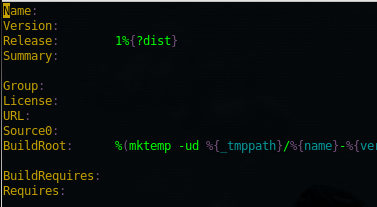
once customized, move it to the SPECS folder
it should look as follows:
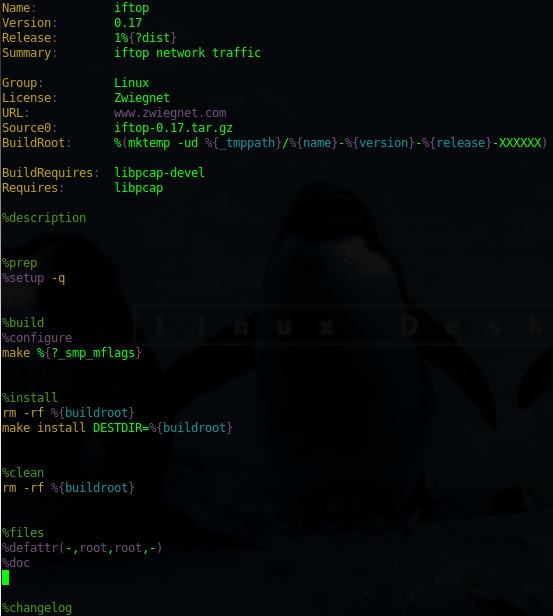
once the spec file looks good, we need to build the RPM, you can get all the command switches for rpmbuild in man rpmbuild. The -ba options mean build a binary rpm, as well as a source RPM (SRPM)

at this point there will be lots of things going on your screen, it’s compiling the source into a RPM package.
uh oh, we have the most common build error ever: there are extra files left over, and it was not specified to be included. Since we are smart, and want our package to work, we are going to include them.
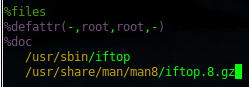
copy the two file names, and then vi the spec file, add to the files section of the spec file.
once added, retry the build:
it will once again try to compile
A Successful compilation would say something like “Wrote /rpmbuild/RPMS/x86_64/{package-name}.os.architecture.rpm

now we just need to verify the RPM is present
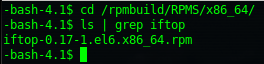
It’s generally a good idea to test the RPM to verify that there were no issues

now from here you can install it on another system.
That’s it!
Hosted Linux Servers at www.zwiegnet.com/go