
iSCSI initiator setup CentOS,Oracle,Redhat Linux
iSCSI initiator setup CentOS,Oracle,Redhat Linux
Let’s assume we are going to connect a SAN Volume or LUN to Linux. How do we go about doing that, how do we even add disks for that matter? This tutorial well take you through all the steps. ** PLEASE NOTE WE ARE NOT RESPONSIBLE FOR ANY DATA LOSS **
login, and su to root

first we need to install iscsi initiator tools
we obviously want to start the service, and make sure it starts after a reboot

from here you want to get the targets from the SAN (replace 192.168.1.28 with your SAN’s IP address)

from here we found two targets, as expected

make sure you can do a restart of the iSCSI initiator service
now if we do fdisk -l, we should see our new /dev/sdb that’s about 85GB
sweet
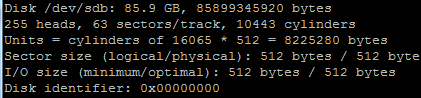
from here we need to format/partition

m for help
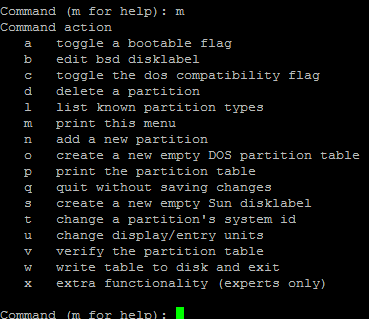
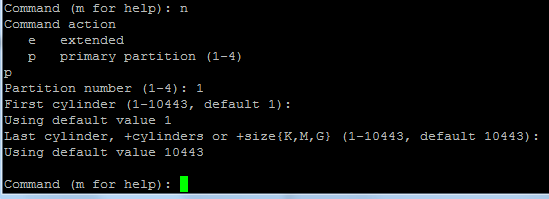
from where we are going to hit “n” for new partition
from here we need to change the partition type
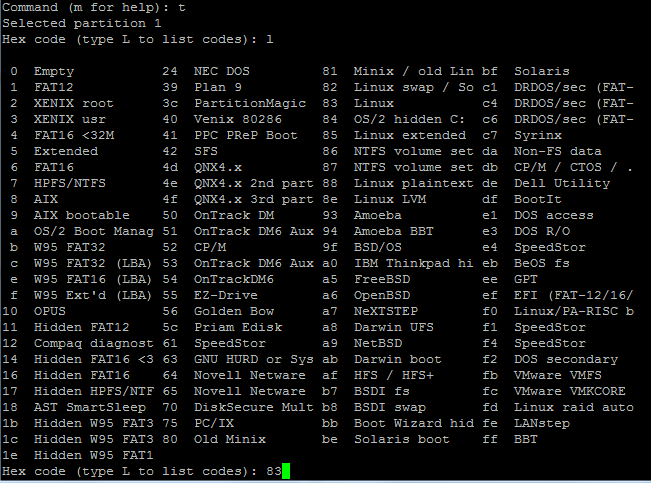
from here we are going to select type 83 for Linux
from here we do some checks, and use w to save/quit
from here we are going to create a physical volume on /dev/sdb1

now we just have to make the filesystem

done!

now we need an area to mount this drive

mount the volume by editing /etc/fstab

save + quit
do mount -a (will re-mount ALL FILESYSTEMS)

from there df -h to verify it’s mounted

Done! That’s it!
Hosted Linux Servers at www.zwiegnet.com/go
Related guides: Expand SAN LUN Oracle Linux 6 | Mount SAN Volume Oracle Linux