
Setup SSH Password-less Login Linux
Setup SSH Password-less Login Linux
if you have not yet, install openssh-clients on BOTH Systems
the first thing you want to do is setup the “client” side, first thing to do is get logged in on the system you want to share:
type the following command to generate the remote key:
ssh-keygen -t rsa
it will ask where do you want the file, just hit enter and do the defaults
hit enter a few times, it will ask you for a password, do not do anything, just hit enter, this will allow the password-less login
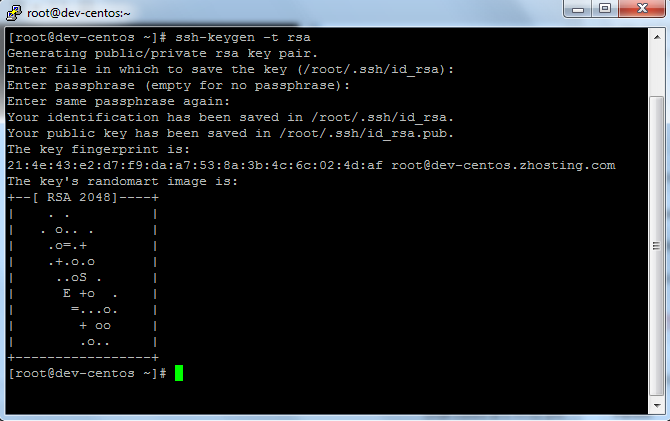
this should be your result.
after that the key needs to be moved to the remote system with the following command:
scp .ssh/id_rsa.pub username@server-ip-address:.ssh/authorized_keys
it should ask for the remote systems password, enter it

as you can see the key copied to the remote system successfully.
Now, login to the remote system, and do a SSH to the system you just copied the key from:

as you can see, it instantly logs you in without a password! Bam! Passwords-lees Login for Linux has been achieved!
zwiegnet.com/go for Linux Consulting
Related guides: Configure SSH Key Authentication Only | Allow root SSH Login Amazon EC2